1. Kupu Whakataki
This manual provides detailed instructions for the setup, operation, and maintenance of your FIREBAT Mini PC A8. The FIREBAT A8 is a compact, high-performance mini computer equipped with an AMD Ryzen 8745HS processor, AMD Radeon 780M graphics, and an OCuLink port for external GPU expansion. It supports quad-screen display and offers versatile connectivity options. Please read this manual thoroughly to ensure proper use and to maximize the performance of your device.

Whakaahua 1.1: Mua me muri view of the FIREBAT Mini PC A8, showcasing tona hoahoa kiato me nga momo tauranga.

Whakaahua 1.2: Ka mutuview of the FIREBAT A8 Mini PC, highlighting its core features and design.
2. Ihirangi mokete
Manatokohia ko nga mea katoa kei raro nei kei roto i to kete. Mena kei te ngaro, kua pakaru ranei etahi taonga, tena koa whakapiri atu ki te tautoko a nga kaihoko.
- 1 x FIREBAT A8 AMD Ryzen 7 8745HS Mini PC
- 1 x US Power Supply (19V 6.32A 120W)
- 1 x VESA Maunga
- 1 x taura HDMI
- 1 x Manual Kaiwhakamahi (tenei tuhinga)

Image 2.1: Visual representation of the items included in the FIREBAT A8 package.
3. Hua Neke Atuview
3.1 Nga waahanga matua
- Tukatuka: AMD Ryzen 7 8745HS (8 Cores/16 Threads, up to 4.9GHz)
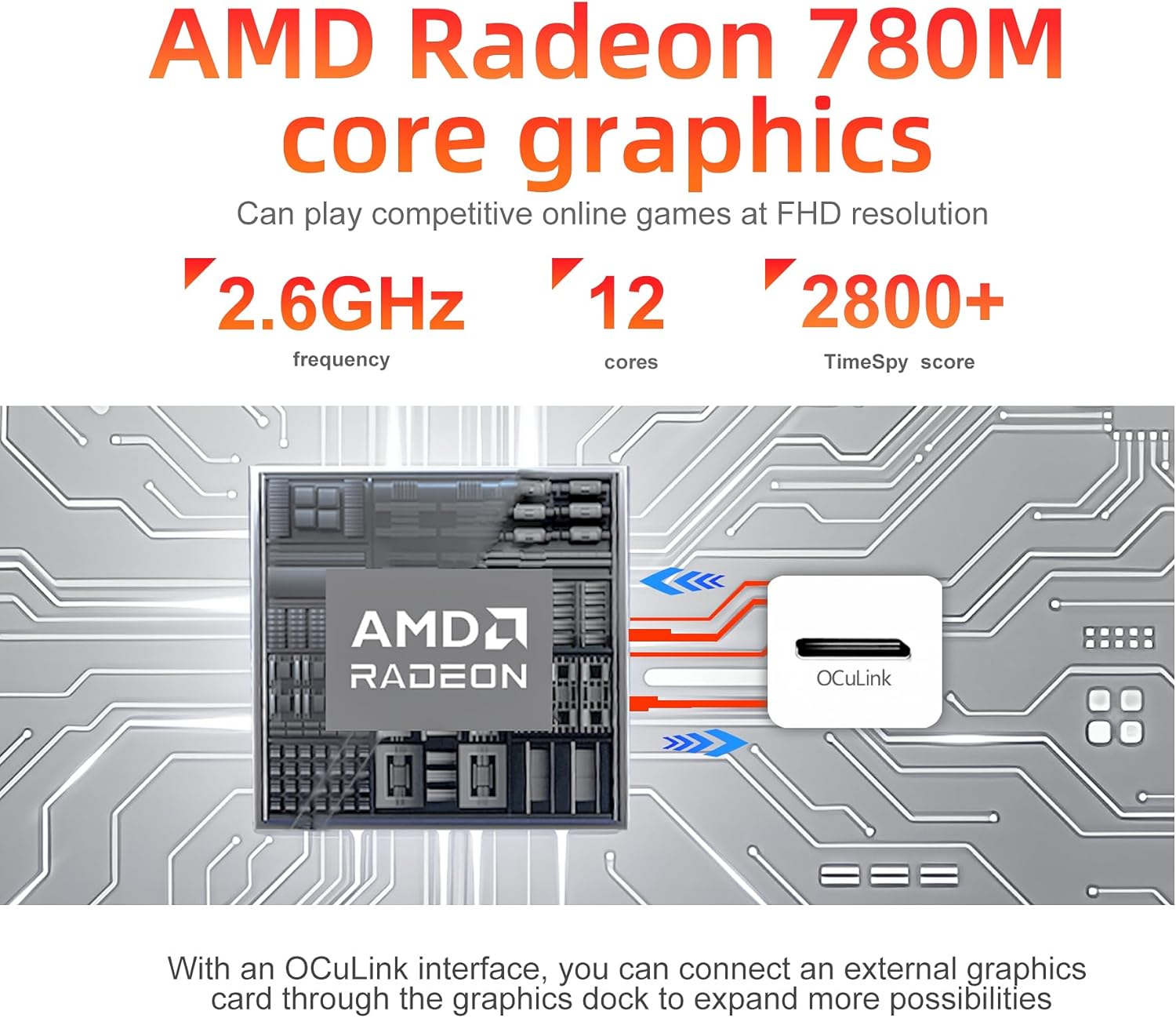
- Whakairoiro: AMD Radeon 780M Whakauru
- Pūmahara: 32GB DDR5 5600MHz RAM (expandable up to 64GB)
- Rokiroki: 1TB PCIe 4.0 M.2 2280 SSD
- Hononga: WiFi 6 (802.11ax), Bluetooth 5.2, Dual 2.5Gbps RJ45 LAN
- Whakaatu Putanga: Quad-screen support via 2x USB-C 4.0, 1x DP 1.4, 1x HDMI 2.1
- Roha: OCuLink port for external graphics card support
- Aratau Mahinga: One-click switch for Quiet (45W), Balanced (54W), and Performance (65W) modes
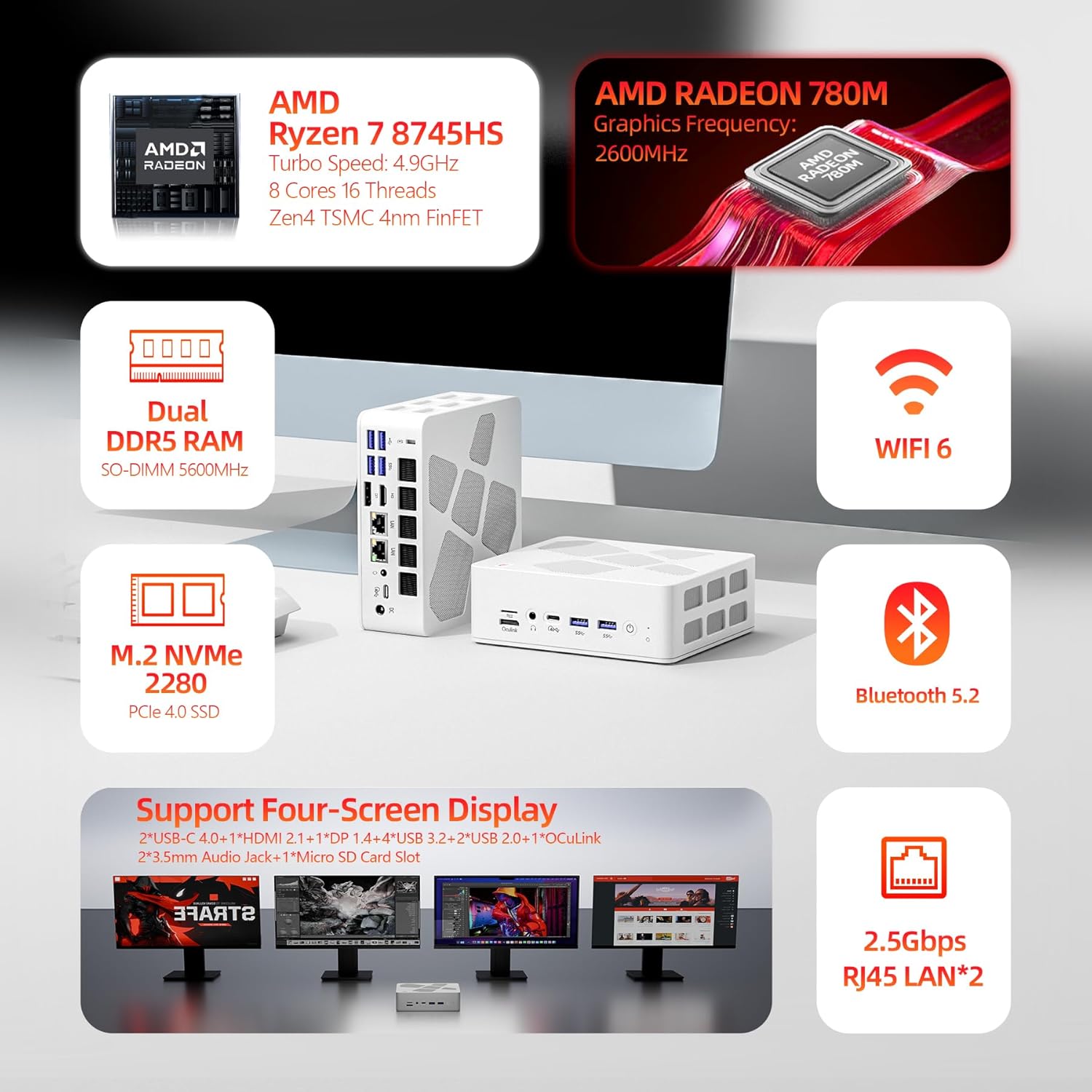
Image 3.1: Diagram highlighting the main components and features of the FIREBAT A8 Mini PC.
3.2 Ngā Tauranga me ngā Atanga
The FIREBAT A8 Mini PC offers a comprehensive set of ports for various peripherals and displays.
- 1x OCuLink port (for external graphics card)
- 1x Mokamoka Kaari TF
- 2x USB-C 4.0 (supports Power Delivery, DisplayPort, up to 40Gbps data transfer)
- 4x USB 3.2 Gen2 (up to 10Gbps data transfer)
- 2x USB 2.0 (up to 5Gbps data transfer)
- 1x Kensington Anti-theft Lock Hole
- 1x Tauranga Whakaatu 1.4
- 1x HDMI 2.1
- 2x 3.5mm Audio Jacks (Headphone & Microphone)
- 2x 2.5Gbps RJ45 LAN ports
- 1x Tāuru Mana DC
- 1x Patene Hiko
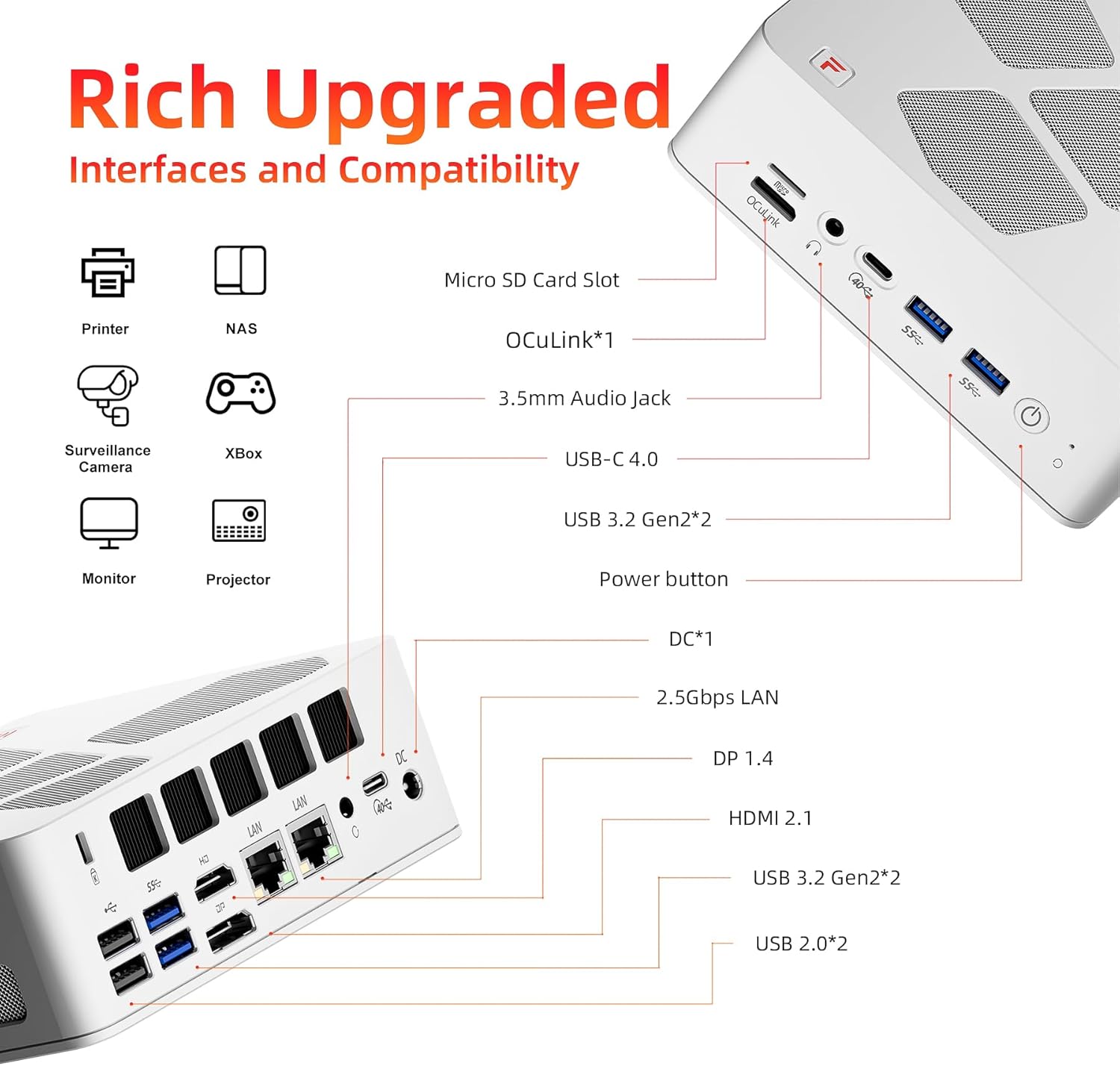
Image 3.2: Detailed diagram illustrating the location and type of all ports and interfaces on the FIREBAT A8 Mini PC.
4. Tohutohu Tatūnga
4.1 Hononga Tuatahi
- Tuhono Whakaatu: Connect your monitor(s) to the Mini PC using the HDMI, DisplayPort, or USB-C 4.0 ports. The device supports up to four displays simultaneously.
- Tūhono Pikitia: Plug in your keyboard, mouse, and other USB devices into the available USB ports.
- Hono Whatunga: For a wired connection, connect an Ethernet cable to one of the 2.5Gbps RJ45 LAN ports. For wireless, ensure your WiFi network is available.
- Hono Hono: Connect the provided power adapter to the DC power input port on the Mini PC, then plug the adapter into a power outlet.
- Whakahiko: Press the power button located on the front of the Mini PC to turn on the device.
4.2 Tāutanga Maunga VESA
The included VESA mount allows you to attach the Mini PC to the back of a compatible monitor or to a wall mount, saving desk space.
- Secure the VESA mount bracket to the back of your monitor or desired surface using appropriate screws.
- Slide the Mini PC onto the mounted bracket until it clicks securely into place.
5. Nga Tohutohu Whakahaere
5.1 Performance Modes
The FIREBAT A8 features a one-click performance mode switch, allowing you to adjust power consumption and performance based on your needs. The LED indicator on the device will change color to reflect the current mode.
- Green (Quiet Mode - 45W): Ideal for office tasks, web browsing, and light applications where low noise and power efficiency are prioritized.
- Blue (Balanced Mode - 54W): Suitable for medium workloads, general computing, and moderate applications.
- Red (Performance Mode - 65W): Provides maximum performance for demanding tasks such as gaming, video editing, and other high-load applications.

Image 5.1: The performance mode switch button and its corresponding LED indicators.

Image 5.2: Visual representation of the 65W Performance Mode in action.
5.2 Multi-Screen Display
The FIREBAT A8 supports simultaneous output to up to four screens, enhancing productivity and immersive experiences.
- HDMI 2.1 port supports up to 8K@60Hz resolution.
- USB-C 4.0 ports support up to 4K@144Hz resolution.
- DisplayPort 1.4 also supports high-resolution output.
Connect your displays to the available video output ports and configure your display settings within the operating system.
Whakaahua 5.3: Example setup demonstrating the quad-screen display capability of the Mini PC.
6. Te Whakawhanui i te Rokiroki me te Mahara
The FIREBAT A8 allows for easy upgrades of both RAM and SSD storage to meet future demands.
- Pūmahara: The device comes with 32GB DDR5 5600MHz RAM (2x16GB SO-DIMM). It supports dual-channel memory and can be expanded up to 64GB.
- Rokiroki: It includes a 1TB PCIe 4.0 M.2 2280 SSD. There is an additional slot for another M.2 2280 SSD, allowing for further storage expansion.
To access the internal components for upgrade, carefully remove the bottom cover of the Mini PC. Consult a professional if you are unsure about the upgrade process.

Whakaahua 6.1: Roto view of the FIREBAT A8, highlighting the DDR5 SO-DIMM memory slots and the M.2 2280 SSD slot.

Image 6.2: Close-up of the internal layout, showing the M.2 SSD and DDR5 RAM modules for potential upgrades.
7. Cooling and Noise Management
The FIREBAT A8 is designed with an efficient dual-fan cooling system, incorporating thermal grease and three heat pipes to maintain optimal operating temperatures and minimize noise.
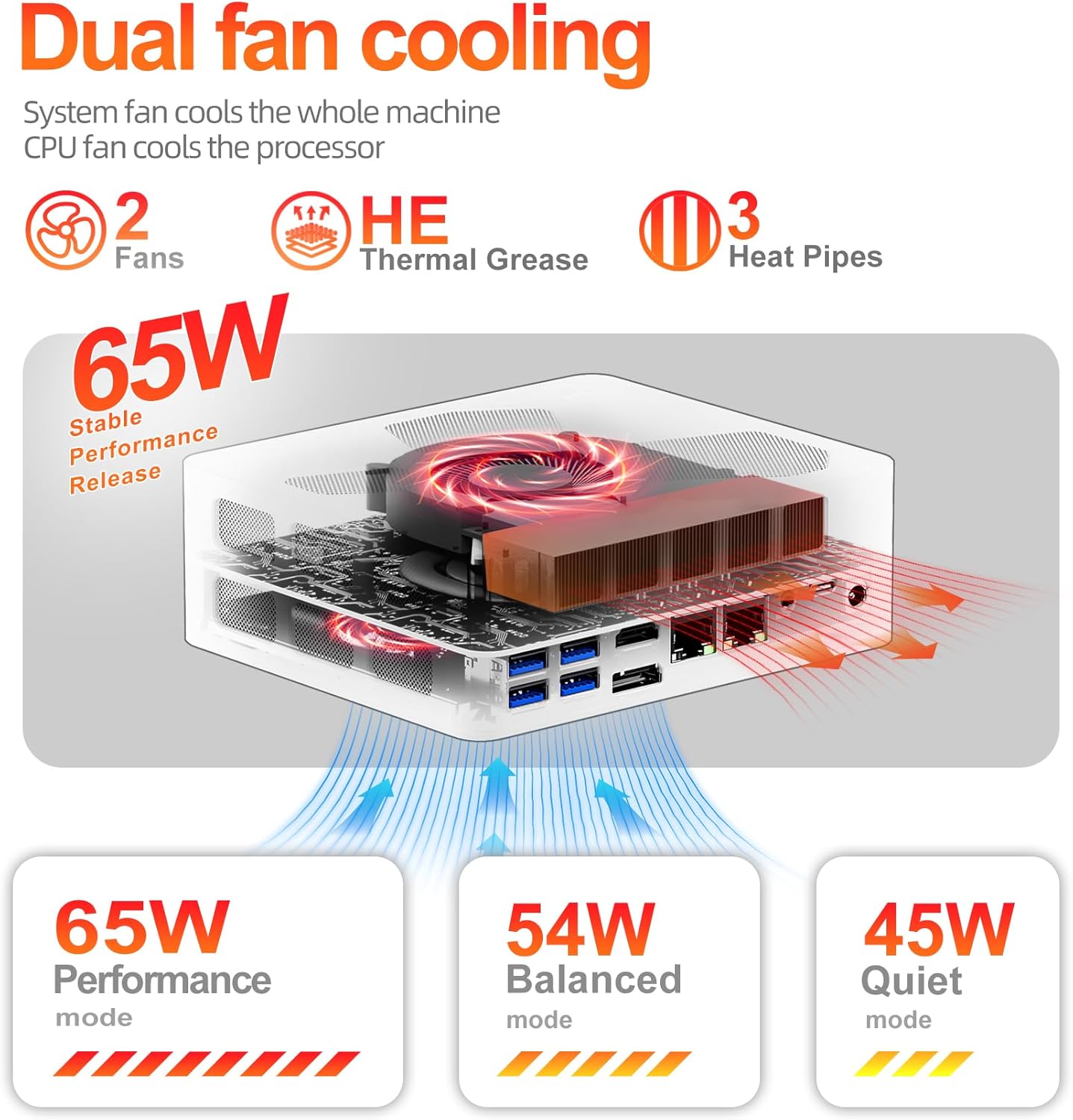
Image 7.1: Diagram illustrating the dual-fan cooling system and heat dissipation within the Mini PC.

Image 7.2: Information on the low noise levels of the FIREBAT A8 during operation.
8. Whakatakotoranga Hangarau
| Āhuahira | Whakatakotoranga |
|---|---|
| Tukatuka | AMD Ryzen 7 8745HS (3.8 GHz base, up to 4.9 GHz turbo, 8 Cores/16 Threads, 16MB L3 Cache) |
| Whakairoiro | AMD Radeon 780M (Whakaurua) |
| RAM | 32GB DDR5 5600MHz (SODIMM, expandable to 64GB) |
| Rokiroki | 1TB PCIe 4.0 M.2 2280 SSD (with additional M.2 slot) |
| Pūnaha Mahi | Default (typically Windows 11 Pro) |
| Hononga Ahokore | WiFi 6 (802.11ax), Nihokikorangi 5.2 |
| LAN | 2x 2.5Gbps RJ45 Ethernet |
| Putanga Ataata | 2x USB-C 4.0 (4K@144Hz), 1x DisplayPort 1.4, 1x HDMI 2.1 (8K@60Hz) |
| Tauranga USB | 2x USB-C 4.0, 4x USB 3.2 Gen2, 2x USB 2.0 |
| Etahi atu tauranga | 1x OCuLink, 1x TF Card Slot, 2x 3.5mm Audio Jack (HP&MIC), 1x Kensington Lock |
| Ahu (LxWxH) | 5.7 x 5 x 2 inihi (14.6 x 12.6 x 5 cm) |
| Taumaha | 1.5 pauna (0.68 kg) |
| Tuku Hiko | 19V 6.32A (120W) |

Image 8.1: The compact dimensions of the FIREBAT A8 Mini PC.
9. Te Raru
9.1 Karekau he Mana
- Me whakarite kei te hono tika te urutau hiko ki te Mini PC me te putanga hiko e mahi ana.
- Manatokohia kei te mahi te putanga hiko ma te hono ki tetahi atu taputapu.
- Check if the power adapter's LED indicator (if any) is lit.
9.2 Kaore he Putanga Whakaatu
- Confirm that the display cable (HDMI, DP, USB-C) is firmly connected to both the Mini PC and the monitor.
- Me mohio kei te whakahikohia te kaitirotiro me te tautuhi ki te puna whakauru tika.
- Try a different display cable or port on the Mini PC.
- If using multiple displays, try connecting only one display at a time to isolate the issue.
9.3 Nga Take Hononga Whatunga
- Whakapau: Check the Ethernet cable connection to both the Mini PC and your router/modem. Verify router/modem status.
- Ahokore: Ensure WiFi is enabled in the operating system. Check if the correct WiFi network is selected and the password is entered correctly. Restart your router/modem.
9.4 Nga Take Mahi a te punaha
- Ensure the Mini PC is set to an appropriate performance mode (Balanced or Performance) for demanding tasks.
- Tirohia mēnā he nui rawa ngā rauemi e pau ana i ngā taupānga papamuri.
- Ensure adequate ventilation around the Mini PC to prevent overheating.
- Whakahōu i ngā taraiwa me te pūnaha whakahaere.
10. Pūtāhui me te Tautoko
FIREBAT is committed to providing quality products and customer satisfaction. For warranty information, technical support, or any inquiries regarding your FIREBAT Mini PC A8, please contact us through the following channels:
- Tautoko Īmēra: support@firebatpc.com
- Whaimana Webpae: www.firebatpc.com
Kia rite mai tō tauira hua (A8) me ngā taipitopito hoko ina whakapā atu koe ki te tautoko.


