1. Kupu Whakataki
Thank you for choosing the Tacens AEROSLIM500 MicroATX PC Case. This slim mini-tower is designed for efficient and compact PC builds, supporting MicroATX and Mini-ITX motherboards. It features optimized airflow, an integrated 500W TFX power supply, and modern connectivity. This manual provides essential information for safe installation, operation, and maintenance of your new PC case.
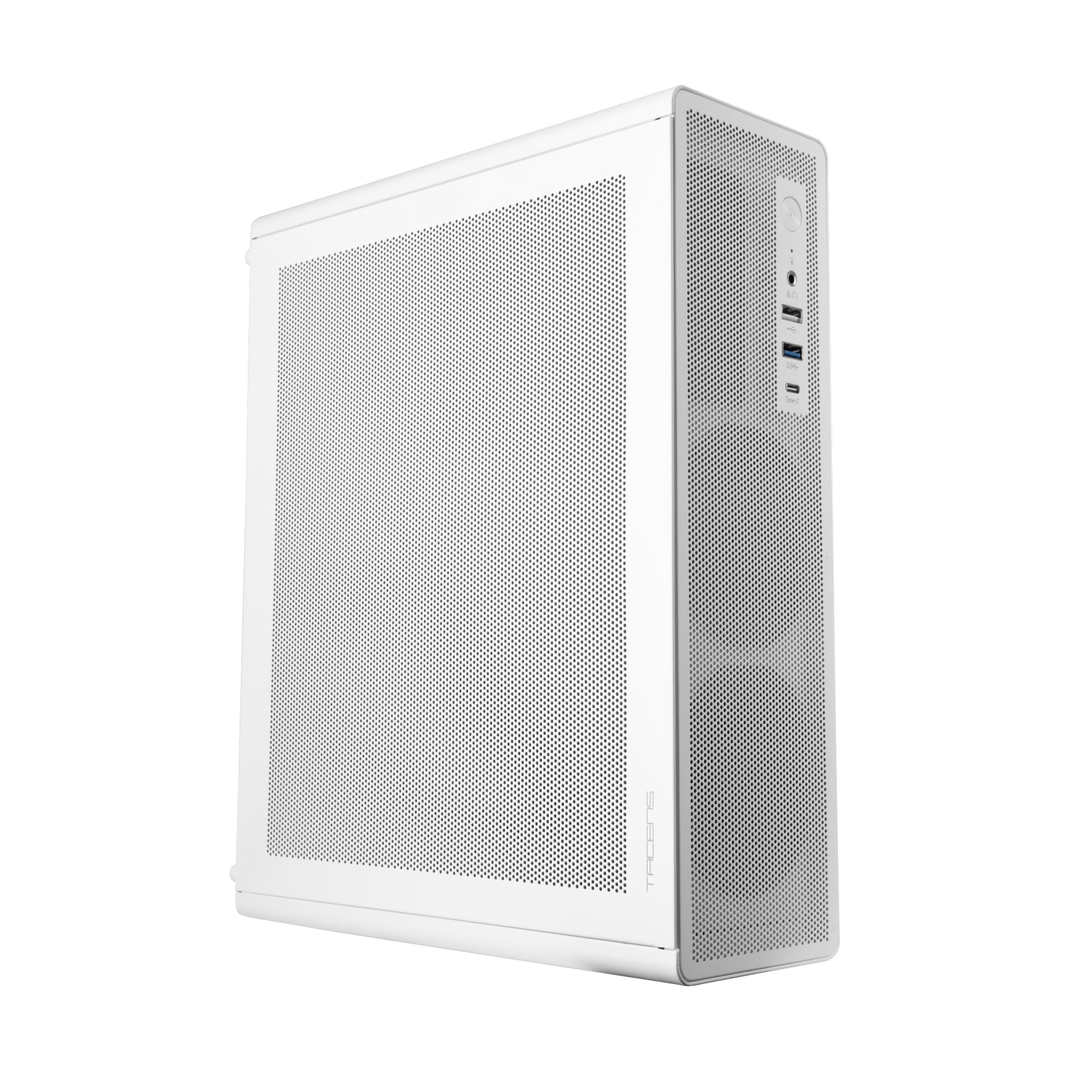
Figure 1: Tacens AEROSLIM500 MicroATX PC Case (Overall View)
2. Nga korero haumaru
Please read and follow these safety guidelines to prevent damage to the product or injury to yourself.
- Momotu Hiko: Always disconnect the power cable from the wall outlet before opening the case or performing any installation/maintenance.
- Hiko Pateko: Discharge static electricity from your body before handling internal components. Use an anti-static wrist strap if available.
- Tapa Koi: Be cautious of sharp edges inside the case during installation.
- Whakahau: Ensure proper ventilation around the case. Do not block air vents.
- Wai me te makuku: Keep the case away from liquids and excessive moisture.
- Tāuta Ngaio: Mena kāore koe i te tino mōhio ki ngā mahi tāutanga, rapua he awhina mai i tētahi tohunga hangarau whai tohu.
3. Ihirangi mokete
Manatokona kei roto katoa nga taonga kei roto i to kete. Mena kei te ngaro, kua pakaru ranei etahi mea, whakapaa atu ki to kaihoko.
- Tacens AEROSLIM500 MicroATX PC Case with integrated 500W TFX Power Supply
- Pre-installed 90mm FDB Front Fan
- Kete taputapu (ngā tīwiri, ngā whakapūmau, ngā here taura)
- Pukapuka Kaiwhakamahi (tenei tuhinga)
4. Nga Hua o te Hua
The Tacens AEROSLIM500 PC case offers a range of features for a compact and efficient build:
- Integrated TFX 500W Power Supply: Ensures stable and efficient power delivery for your components.
- Whakamaeke Ake: Front and side ultra-fine mesh panels provide constant airflow and act as a dust barrier.
- Pre-installed Front Fan: Includes a 90mm FDB (Fluid Dynamic Bearing) fan for optimal cooling. Supports up to two 90mm front fans.
- Optimized Internal Space: Compatible with MicroATX (up to 210mm wide) and Mini-ITX motherboards.
- GPU Support: Accommodates low-profile GPUs up to 220mm long and 63mm wide.
- Kōwhiringa Rokiroki: Features 5 x 2.5" SSD drive bays.
- Roha i'ai: Provides 3 expansion slots for MicroATX or 1-2 for Mini-ITX configurations.
- Whakaoti Hononga: Front panel includes USB-C, USB 3.0, USB 2.0 ports, and HD audio/microphone jacks.
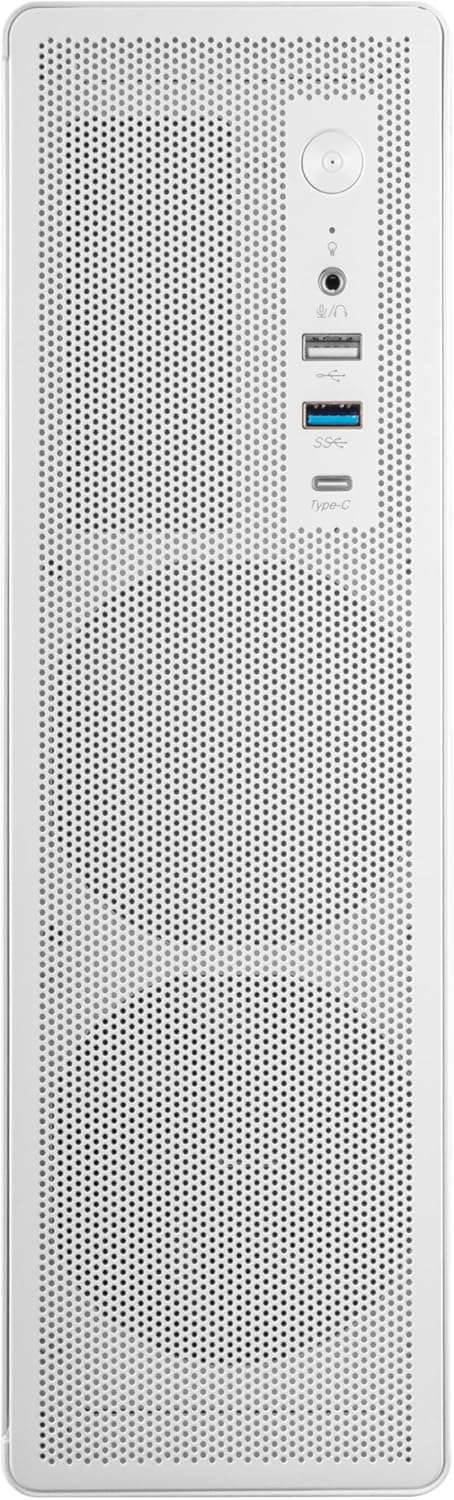
Figure 2: Front Panel Connectivity

Whakaatu 3: Taipitopito View of Front I/O Ports
5. Tatūnga me te Tāuta
Follow these steps to install your components into the Tacens AEROSLIM500 PC case. Ensure the system is powered off and unplugged before beginning.
5.1. Te Whakatuwheratanga o te Take
- Whakanohoia te keehi ki runga i te mata papatahi, pumau.
- Locate the thumbscrews or standard screws on the rear panel securing the side panel(s).
- Remove the screws and carefully slide the side panel(s) backward, then lift them off.

Figure 4: Case Interior View with Pre-installed Fan
5.2. Whakauranga Papa Matua
- Install the CPU, CPU cooler (ensure it fits within the 73mm height limit), and RAM onto your MicroATX or Mini-ITX motherboard before placing it in the case.
- Align the motherboard with the pre-installed standoffs inside the case.
- Whakamauhia te papahoahoa mā te whakamahi i ngā tīwiri e tika ana mai i te kete taputapu.

Figure 5: Motherboard Mounting Area
5.3. Storage Device Installation (2.5" SSD/HDD)
- Locate the 2.5" drive bays/mounting points. The case supports up to 5 x 2.5" drives.
- Secure your 2.5" SSDs or HDDs using the provided screws.
- Connect SATA data and power cables to the drives.

Figure 6: Power Supply and Drive Bay Area
5.4. Tāutanga Kāri Whakawhanui (GPU)
- Tangohia ngā taupoki mokowā whakawhānui e tika ana mai i te tuarongo o te pouaka.
- Carefully insert your low-profile GPU (max 220mm length, 63mm width) into the PCIe slot on the motherboard.
- Whakamaua te kāri whakawhanui ki te tīwiri.
5.5. Te Hononga i ngā Taura o te Paewhiri o Mua
Connect the front panel cables (USB-C, USB 3.0, USB 2.0, HD Audio, Power Switch, Reset Switch, Power LED, HDD LED) to their corresponding headers on your motherboard. Refer to your motherboard manual for exact header locations.
5.6. Whakahaerenga Taura
Route cables neatly to improve airflow and aesthetics. Use the provided cable ties to secure bundles of cables.
5.7. Closing the Case
- Once all components are installed and cables are managed, reattach the side panel(s).
- Secure the side panel(s) with the thumbscrews or standard screws.
6. Nga Tohutohu Whakahaere
After successful assembly, connect your peripherals (monitor, keyboard, mouse) and the power cable to the integrated TFX 500W power supply.
- Whakahiko: Pēhia te pātene mana kei te papa o mua hei whakakā i tō rorohiko.
- Tauranga USB: Use the front USB-C, USB 3.0, and USB 2.0 ports for connecting external devices.
- Jacks Ororongo: Connect headphones or a microphone to the front audio jacks.
- Weto Whakakore: Shut down your computer through the operating system. For a hard shutdown, press and hold the power button for several seconds.
7. Tiaki
Ko te tiaki i nga wa katoa ka awhina i te mahi tino pai me te roa o nga waahanga PC.
- Whakapai puehu: The mesh panels act as dust filters. Periodically clean the front and side mesh panels using compressed air or a soft brush to remove accumulated dust.
- Horoi o roto: Every 6-12 months, open the case (after disconnecting power) and use compressed air to clean dust from internal components, especially CPU coolers and GPU fans.
- Taki Whakahaere Taura: Ensure cables remain neatly routed and do not obstruct airflow.
8. Te Raru
Ki te tūtaki koe ki ngā raruraru, tirohia ngā mahi rapurongoā noa e whai ake nei.
- Kore Mana:
- Ensure the power cable is securely connected to both the wall outlet and the PC's power supply.
- Verify that the power supply switch (if present) is in the 'ON' position.
- Check all internal power connections (24-pin ATX, 8-pin CPU, GPU power) to the motherboard and components.
- Me whakarite kei te hono tika te taura pātene mana o te papa o mua ki te pane o te papahoahoa.
- Kore Whakaatu:
- Confirm your monitor is powered on and connected to the correct video output on your GPU or motherboard.
- Reseat your GPU and RAM modules.
- Haruru nui:
- Check if any cables are obstructing fan blades.
- Clean dust from fans (CPU, GPU, case fans, PSU fan).
- Ensure all screws are tightened to prevent vibrations.
- Kāore e Mahi ana ngā Tauranga o te Paewhiri o Mua:
- Verify that the USB and audio cables from the front panel are correctly connected to the motherboard headers.
9. Whakatakotoranga
| Waitohu | Tacens |
| Ingoa Tauira | AEROSLIM500 |
| Papamatua Hototahi | Micro ATX, Mini ITX |
| Momo Take | Compact Desktop / Mini-Tower |
| Tae | Mā |
| Rauemi | Te whakarewa |
| Tuku Hiko | Integrated TFX 500W |
| Tikanga whakamatao | Air (Pre-installed 90mm FDB front fan) |
| Teitei Teitei Maanao CPU | Tae atu ki te 73mm |
| Tepe Roa GPU | Up to 220mm (low-profile anake) |
| GPU Width Limit | Tae atu ki te 63mm |
| Peia Bays | 5 x 2.5" SSD/HDD |
| Roha Slots | 3 (MicroATX), 1-2 (Mini-ITX) |
| Tuhinga o mua | 1x USB-C, 1x USB 3.0, 2x USB 2.0, HD Audio (Headphone/Microphone) |
| Taumaha Tūemi | 2.25 Kirokaramu |
10. Pūtāhui me te Tautoko
Tacens products are manufactured to the highest quality standards. For information regarding warranty coverage, terms, and conditions, please refer to the warranty card included with your product or visit the official Tacens webpae.
For technical support, troubleshooting assistance beyond this manual, or to inquire about replacement parts, please contact Tacens customer service through their official webpae, nga korero whakapā ranei e whakaratohia ana i roto i to tuhinga hua.
Official Tacens Webpae: www.tacens.com (Tuhipoka: He waahi tenei URL. Please refer to your product packaging for the correct official webpae.)


