
1. Kupu Whakataki
This manual provides essential information for the safe and efficient use of your URAO 14-inch Android 15 Tablet, model G140L. Please read this manual thoroughly before operating the device to ensure proper setup and functionality. Keep this manual for future reference.
2. Ihirangi mokete
Manatokona kei roto katoa nga mea kei roto i te kete:
- URAO 14-inch Android 15 Tablet (G140L)
- Papapātuhi Nihokikorangi
- Bluetooth Mouse (Note: Batteries not included)
- Pene Stylus
- Take Tiaki
- Pūorooro
- USB Momo-C Taura Whakapae
- Pūurutau Hiko (Kaitohu)

Image: A visual representation of the URAO G140L tablet, highlighting its ports and buttons, alongside all standard accessories provided in the retail package.
3. Tatūnga
3.1 Hiko Tuatahi
- Press and hold the Power ON/OFF button located on the side of the tablet until the screen illuminates.
- Whaia nga tohu i runga-mata hei kowhiri i to reo, hono atu ki te whatunga Wi-Fi, ka whakarite i to putea Google.
3.2 Te Whakataki i te Papa
Before first use, fully charge the tablet. Use the provided USB Type-C charging cable and power adapter.
- Connect the USB Type-C cable to the tablet's charging port.
- Monohia te urutau hiko ki te putanga pakitara.
- The battery indicator on the screen will show charging status. A full charge typically takes approximately 2.5 hours with the 30W fast charging capability.
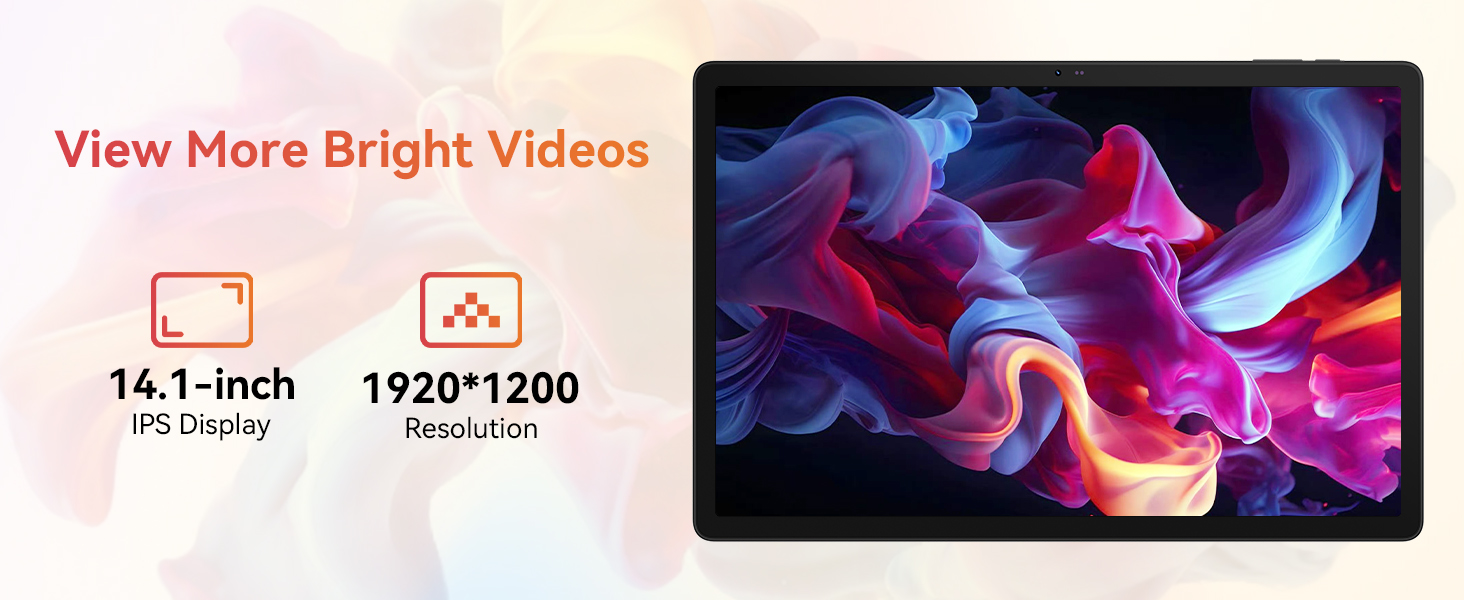
Image: The URAO tablet connected to a charger via its Type-C port, illustrating the 10000mAh battery and 30W fast charging feature.
3.3 Connecting Peripherals (Keyboard, Mouse, Stylus)
The included keyboard, mouse, and stylus connect via Bluetooth.
- Haere ki Tautuhinga > Nga taputapu hono > Nihokikorangi i runga i to papa.
- Me mohio kua huri a Nihokikorangi On.
- Put the keyboard, mouse, or stylus into pairing mode (refer to each accessory's individual instructions for specific pairing steps).
- Select the accessory from the list of available devices on your tablet to pair.
3.4 Hononga Whatunga (Wi-Fi)
Hono ki te whatunga Wi-Fi mo te uru ipurangi.
- Haere ki Tautuhinga > Whatunga me te ipurangi > Ipurangi.
- Huri Wi-Fi i runga.
- Select your desired Wi-Fi network from the list and enter the password if required. The tablet supports Wi-Fi 6 (802.11ax) for faster and more stable connections.
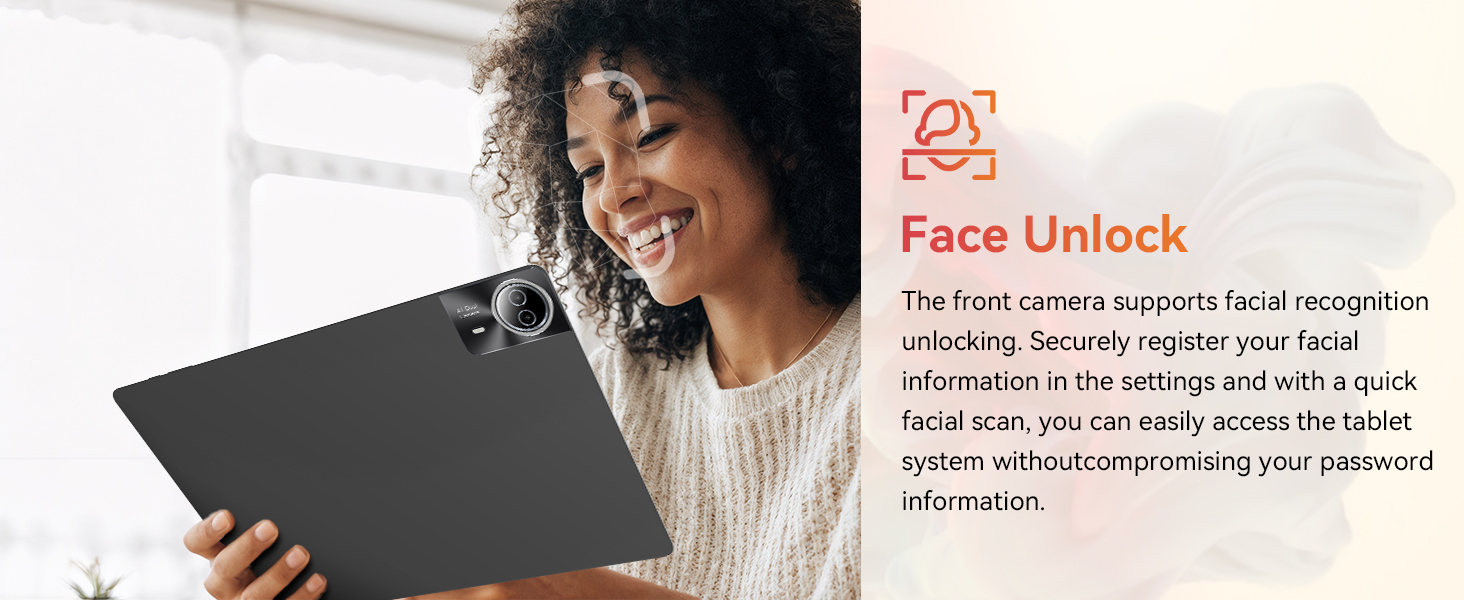
Image: The URAO tablet screen showing icons for dual-band Wi-Fi (2.4G+5G) and Bluetooth 5.4, indicating its connectivity features.
4. Nga Tohutohu Whakahaere
4.1 Whakaterenga Taketake (Android 15)
Your tablet runs on Android 15, offering an intuitive user interface. Use touch gestures for navigation:
- Tap: Tīpakohia tētahi tūemi.
- Swipe: Panuku mā roto i ngā whārangi, i ngā rārangi rānei.
- Tiki: Topa atu, neke atu ranei i runga i nga whakaahua me web wharangi.
- Panui Roa: Uru ki nga tahua horopaki, nukuhia ranei nga ata.
4.2 Tautuhinga Whakaatu
The 14.1-inch IPS FHD display offers a resolution of 1920x1200 pixels for clear visuals. Adjust display settings via Tautuhinga > Whakaatu.
- Taumata Tirohanga: Whakaritea te kanapa o te mata.
- Kaupapa pouri: Enable for reduced eye strain in low light.
- Aratau Tiaki kanohi: Reduces blue light emission.
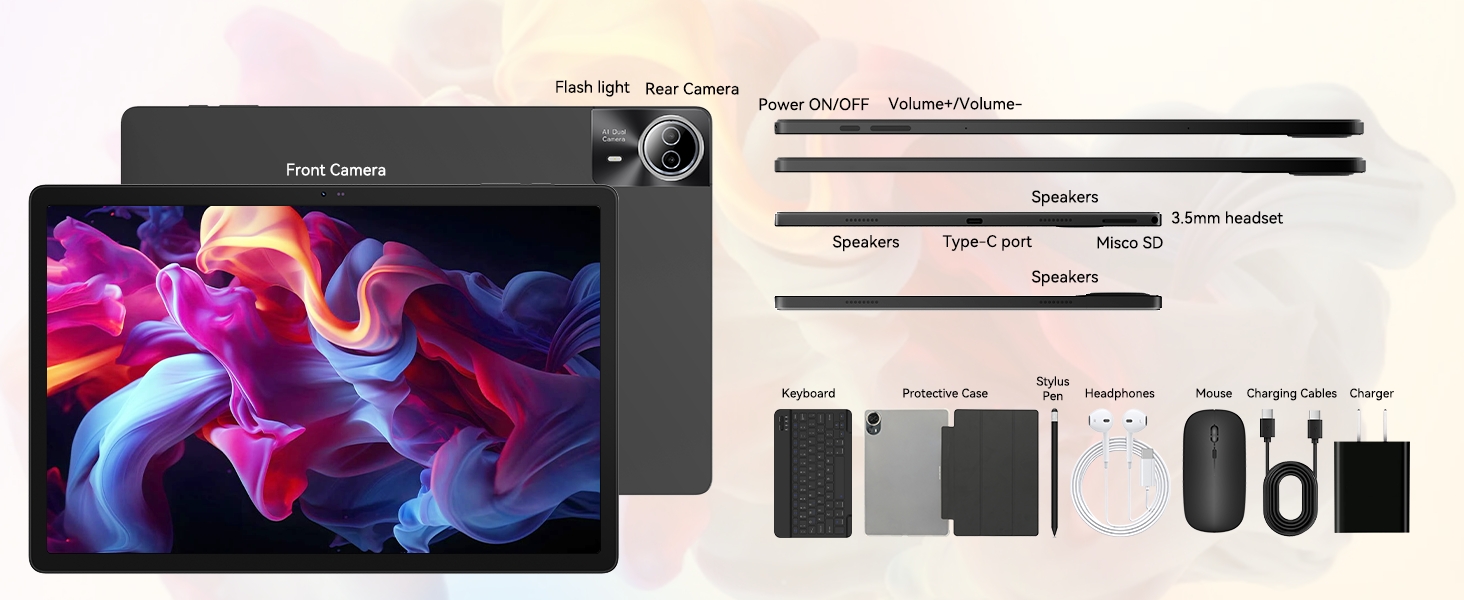
Image: The URAO tablet displaying a high-resolution image, emphasizing its 14.1-inch IPS display and 1920x1200 pixel resolution for bright and clear visuals.
4.3 Whakamahinga Kaamera
He kāmera 5MP kei mua o te papahikohiko, ā, he kāmera 8MP hoki kei muri.
- Whakatuwheratia te Kāmera taupānga mai i te mata kāinga, i te pouaka taupānga rānei.
- Pāwhiritia te ata kāmera hei whakawhiti i waenga i ngā kāmera o mua me muri.
- Tap the shutter button to take photos or start/stop video recording.
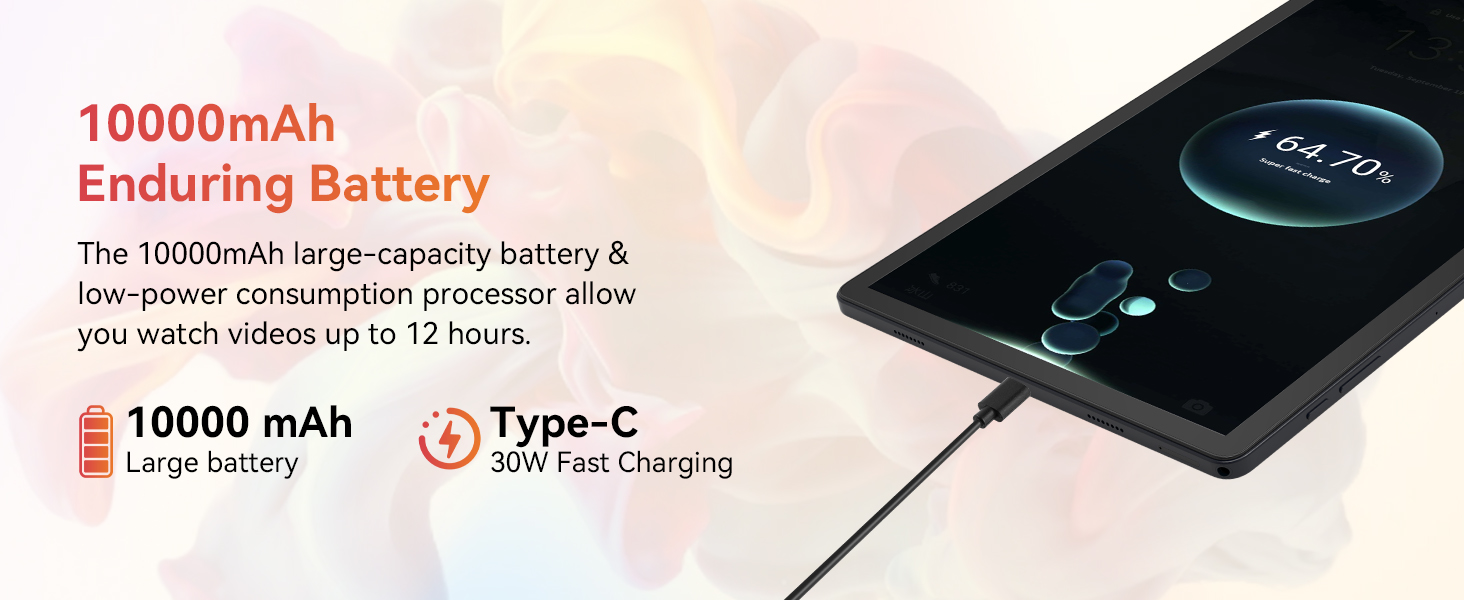
Image: A collage demonstrating the photo capabilities of the URAO tablet, featuring images taken with its 8MP rear camera and 5MP front camera, suitable for video calls and capturing moments.
4.4 Ororongo
The tablet is equipped with Stereo 4 Speakers for an immersive audio experience. Volume can be adjusted using the Volume +/- buttons on the side of the tablet or through the on-screen controls.
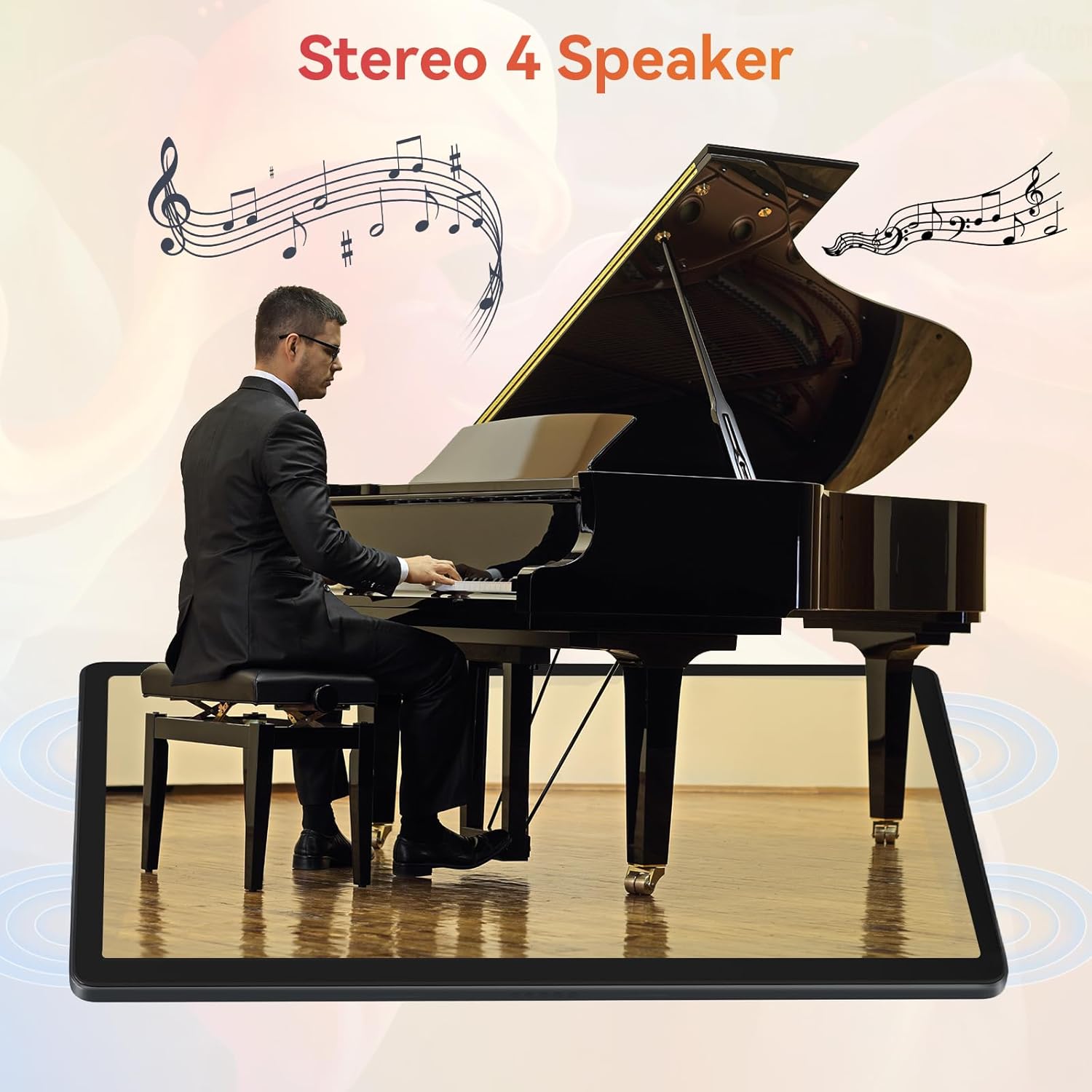
Image: The URAO tablet positioned in front of a piano player, with a graphic overlay indicating the presence of Stereo 4 Speakers for enhanced sound.
4.5 Whakahaere Rokiroki
Your tablet comes with 256GB of internal storage and 30GB of RAM (6GB physical + 24GB virtual expansion). Storage can be expanded up to 1TB using a TF (Micro SD) card (not included).
- To insert a TF card, locate the card slot on the side of the tablet and gently push the card in until it clicks.
- Manage storage via Tautuhinga > Rokiroki.
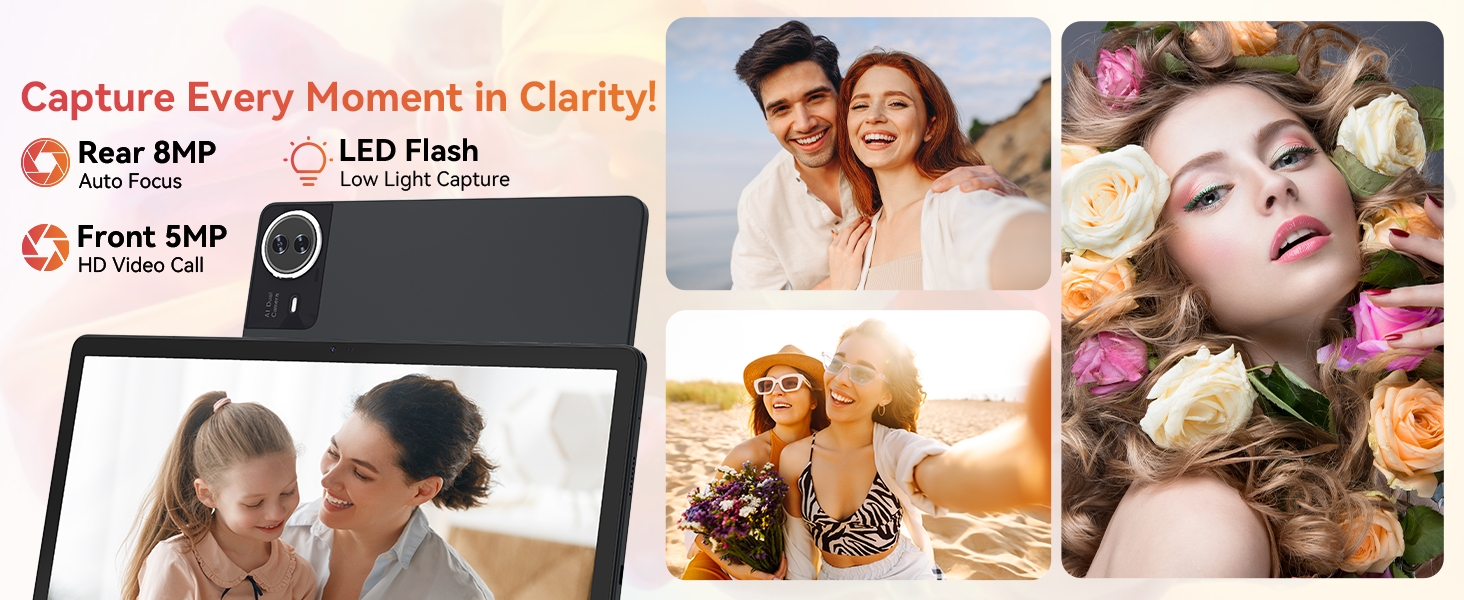
Image: The URAO tablet displaying multiple application icons, with graphics indicating its 30GB RAM (6+24GB), 256GB ROM, and support for up to 1TB external storage.
Aratau 4.6 2-i roto-i te-1
Transform your tablet into a laptop-like experience by connecting the Bluetooth keyboard and mouse. The protective case can also function as a stand.

Image: A multi-panel image showing the URAO tablet in different usage scenarios, including note-taking with a stylus, typing with the keyboard and mouse, and watching videos, demonstrating its versatility.
4.7 Ahurangi Mata
The front camera supports facial recognition for convenient unlocking.
- Haere ki Tautuhinga > Haumarutanga me te tūmataiti > Wewete kanohi.
- Follow the on-screen instructions to register your facial data.
- Once set up, you can unlock your tablet by simply looking at the front camera.
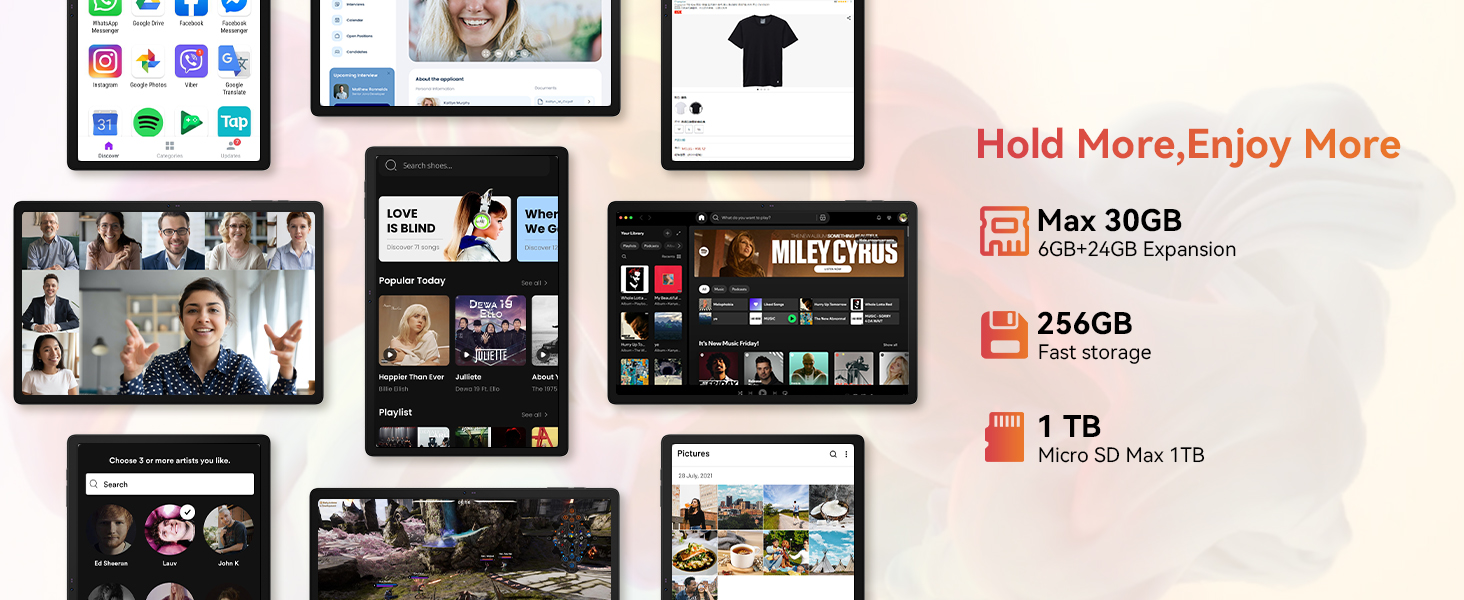
Image: A woman demonstrating the face unlock feature of the URAO tablet, with an icon indicating facial recognition technology.
5. Tiaki
5.1 Te horoi i te taputapu
- Whakamahia he kakahu ngohengohe, kore-raro hei horoi i te mata me te tinana o te papa.
- A ape i te whakamahi i nga matū kino, i nga taonga abrasive ranei.
- Kaua e rehuhia ngā mea horoi tika ki runga i te mata.
5.2 Whakahōu Pūmanawa
Tirohia i ia wā, i ia wā, mō ngā whakahōunga pūnaha hei whakarite i te mahi tino pai me te haumarutanga.
- Haere ki Tautuhinga > Pūnaha > Whakahoutanga o te punaha.
- Whaia nga tohutohu i runga-mata ki te tango me te whakauru i nga whakahou e waatea ana.
5.3 Tiaki Pūhiko
Hei whakaroa i te ora o te papahiko:
- A ape i te tuku i te papa ki te wera nui.
- Kaua e tukua te pākahiko kia tino rere tonu.
- Whakamahia anake te rihi me te taura kua whakaratohia.
6. Te Raru
6.1 Kaore te Pūrere i te hiko
- Me whakarite kia rawaka te utu o te papahiko. Honoa ki te rihi mō te 30 meneti pea.
- Press and hold the Power ON/OFF button for 10-15 seconds to perform a forced restart.
6.2 Nga Take Hononga Wi-Fi
- Tīmataria anō tō pouara Wi-Fi me te papa.
- Me whakarite kei roto koe i te awhe o te tohu Wi-Fi.
- Tirohia kua tika te whakaurunga o te kupuhipa Wi-Fi.
6.3 Peripherals Not Connecting (Keyboard/Mouse/Stylus)
- Ensure Bluetooth is enabled on the tablet and the accessory is in pairing mode.
- Check if the accessory has sufficient battery (e.g., replace mouse batteries).
- Unpair and re-pair the accessory from the tablet's Bluetooth settings.
6.4 Touchscreen Unresponsiveness
- Tīmataria anō te papa.
- Ensure the screen is clean and free of debris or liquids.
- If the issue persists, a factory reset may be necessary (back up your data first).
7. Whakatakotoranga
Technical Specifications for URAO G140L Tablet:
| Tauira | G140L |
| Pūnaha Mahi | Android 15 |
| Rahi Mata | 14.1 Inihi |
| Whakatau Mata | 1920 x 1200 pika (FHD IPS) |
| Tukatuka | 2.0 GHz Octa-matua |
| RAM | 30GB (6GB tinana + 24GB mariko) |
| Rokiroki Roto (ROM) | 256GB |
| Rokiroki Whakawhanui | Up to 1TB (TF card, not included) |
| Pūhiko Raukaha | 10000mAh |
| Te utu | Utu Tere 30W, USB Momo-C |
| Toharite Pūhiko Ora | Up to 12 hours (mixed use) |
| Hononga Ahokore | Wi-Fi 6 (802.11ax), Nihokikorangi 5.4 |
| Kāmera Mua | 5MP |
| Kāmera Whakamuri | 8MP |
| Ororongo | Stereo 4 Speakers |
| Pūoko | Pūoko Whakatere Gravity |
| Ahu (LxWxH) | 12.8 x 8.39 x 0.39 inihi |
| Taumaha Tūemi | 4.29 pauna |
8. Pūtāhui me te Tautoko
8.1 Nga Korero Whakaputanga
Your URAO G140L Tablet is covered by a manufacturer's warranty. Please refer to the warranty card included in your package for specific terms and conditions. Keep your proof of purchase for warranty claims.
8.2 Tautoko Kiritaki
For technical assistance, troubleshooting, or warranty inquiries, please contact URAO customer support through the retailer where the product was purchased or visit the official URAO webpae mo nga korero whakapā.

