1. Kupu Whakataki
This manual provides detailed instructions for the installation, operation, and maintenance of your Aublinto 7-inch Android 13 Car Stereo. This unit is designed specifically for Chevrolet Colorado models from 2004 to 2012, offering advanced features such as Wireless/Wired Carplay, Android Auto, GPS Navigation, Bluetooth connectivity, FM/RDS Radio, backup camera support, and steering wheel control integration.
Please read this manual thoroughly before installation and use to ensure proper operation and to prevent damage to the unit or your vehicle.
2. Nga korero haumaru
- E taunakitia ana te whakaurunga ngaio: Installation of this car stereo requires cutting wires and is not a plug-and-play process. Professional installation is highly recommended to avoid damage to the unit or vehicle's electrical system.
- Tuku Hiko: Ensure the unit is connected to a 12V DC power supply with negative grounding. Incorrect voltagka taea e te kino.
- Waea waea: Before connecting, ensure all wires are correctly identified and connected according to the wiring diagram. Incorrect wiring can lead to malfunctions or electrical hazards.
- Haumaru taraiwa: Kaua e whakahaere i te waeine i runga i te ara e whakararu ai koe i te taraiwa. Whakaritea i nga wa katoa te haumaru huarahi.
- Te pāmahana: A ape i te tuku i te waeine ki te wera nui, ki te ra tika ranei mo te wa roa.
- makuku: Keep the unit away from water and excessive moisture to prevent electrical shock or damage.
3. Ihirangi mokete
Manatokohia ko nga mea katoa kei raro nei kei roto i to kete:
- Aublinto 7-inch Android 13 Car Stereo Head Unit
- Waea Hiko
- GPS Antenna
- Kāmera Pūrua AHD
- RCA Input and Output Cables
- Puorooro o waho
- 2 x Tauira USB
- Pukapuka Tohutohu
- Taataki Tuturu

Figure 3.1: Included components of the Aublinto Car Stereo system.
4. Aratohu Whakauru
Tuhipoka Nui: This unit is NOT plug and play. Installation requires cutting and splicing wires. If you are not experienced with car audio installation, professional assistance is strongly recommended.

Figure 4.1: Important notice regarding installation requirements.
4.1 Nga Tirohanga i mua i te whakaurunga
- Momotuhia te tauranga pākahiko kino o te waka hei aukati i nga tarau hiko.
- Remove the factory radio from your Chevrolet Colorado (2004-2012).
- Confirm the center console dimensions match the new head unit.
4.2 Hononga Waea
Refer to the provided wiring diagram in the included instruction manual for specific connections. General connections include:
- Taputapu Tahana: Connect the main power harness to the vehicle's power supply, ensuring correct positive, negative, and accessory wire connections.
- GPS Atene: Honoa te pūihi GPS ka whakamau ki tētahi wāhi mārama view o te rangi (hei tauira, te papaaho whakahaere).
- Kāmera Pūrua: Connect the AHD backup camera. The camera typically requires power from the reverse light circuit and a video signal connection to the head unit's RCA input.
- Tauira USB: Honoa ngā taura USB e rua hei hono atu ki ngā pūrere o waho.
- Waeaoro Waho: Honoa te hopuoro o waho hei whakapai ake i te kounga o te waea.
- Tāuru/Putanga RCA: Whakamahia ēnei hei hono atu ki ngā taputapu o waho amplifiers, subwoofers, or other audio/video sources.
- Mana urungi (SWC): Connect the SWC wires to your vehicle's steering wheel control interface (if applicable) to retain factory steering wheel button functionality.
4.3 Te Whakamau i te Upoko o te Pūoko
- Secure the head unit into the dashboard opening using the provided fixed brackets.
- Ensure all cables are neatly routed and not pinched.
- Tūhono anō te kāpeka pūhiko tōraro o te waka.
- Test the unit's functionality before fully reassembling the dashboard.
5. Nga Tohutohu Whakahaere
This section details the primary functions and how to operate your Aublinto Car Stereo.
5.1 Initial Power On and System Navigation
Upon first power-on, the system will boot to the Android home screen. Navigate using the touchscreen interface. Swipe, tap, and drag just like a tablet or smartphone.
Video 5.1: Demonstration of the car stereo's main interface, GPS navigation, Carplay/Android Auto, reversing image, FM/RDS radio, equalizer settings, Bluetooth, and mirroring functions.
5.2 Wireless/Wired Carplay & Android Auto
Connect your smartphone to the head unit for seamless integration of your phone's features. This unit supports both wireless and wired connections.
- Hononga Ahokore: Enable Bluetooth and Wi-Fi on your phone. Pair your phone with the car stereo via Bluetooth. Follow the on-screen prompts to initiate Wireless Carplay or Android Auto.
- Hononga Waea: Connect your phone to one of the USB ports using a data cable. The system will automatically detect and launch Carplay or Android Auto.
Access phone contacts, emails, notifications, online maps, music, and other applications directly from the car stereo's display. Voice control is also supported.

Figure 5.2: Wireless/Wired Carplay and Android Auto interface.
Figure 5.3: Carplay, Android Auto, and Mirror Link options.
5.3 Whakatere GPS me te Hononga WiFi
The unit supports both online and offline navigation. Connect to a Wi-Fi network to download offline maps or use online navigation services.
- Hononga WiFi: Go to Settings > Network & Internet > Wi-Fi. Select your desired network and enter the password.
- Whakatere Ipurangi: Use pre-installed apps like Google Maps or download others from the app store.
- Whakatere Tuimotu: Download map data for your region via Wi-Fi for navigation without an internet connection.

Figure 5.4: GPS Navigation and WiFi connectivity features.

Figure 5.5: GPS Navigation and WiFi Hotspot capabilities.
5.4 Ngā Mahi Nihokikorangi
Honoa tō waea mā te Nihokikorangi mō te waea kore-ā-ringa me te roma oro.
- Takirua: Go to Bluetooth settings on the head unit and your phone. Rapua available devices and select "CarBT" (or similar name). Enter the PIN if prompted (usually 0000).
- Waea-a-ringa: Make and receive calls directly from the stereo. The built-in microphone captures your voice.
- Rere Ororongo: Play music from your phone through the car stereo speakers.
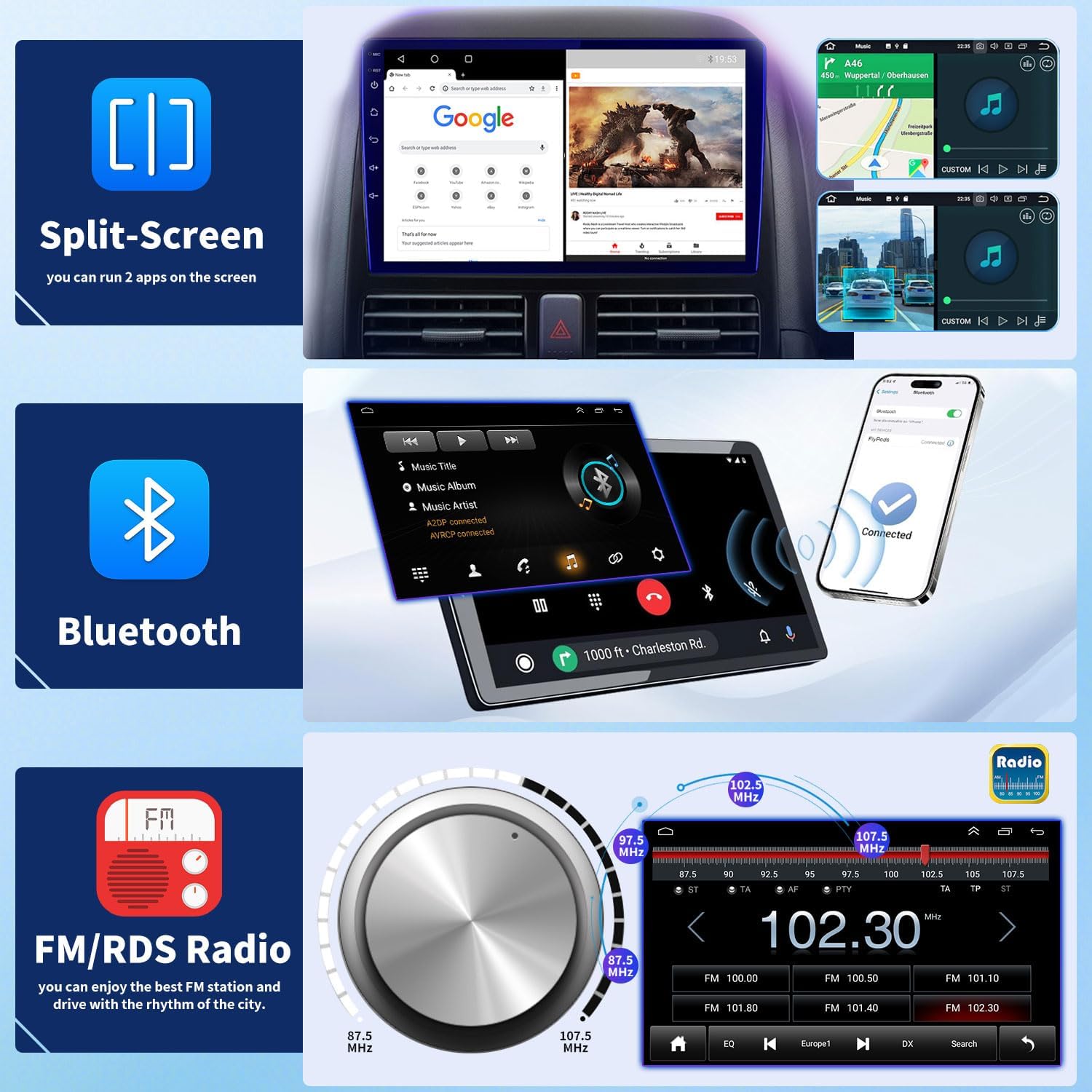
Figure 5.6: Bluetooth interface for calls and music.
Reo Irirangi 5.5 FM/RDS
Enjoy your favorite radio stations with the high-quality digital stereo FM tuner with RDS (Radio Data System).
- Rapu teihana: Use the automatic or semi-automatic search function to find and save radio stations.
- RDS Features: RDS provides additional information like station name, program type, and traffic announcements (where available).
- Kai-rite: Adjust audio settings using the stereo EQ for a personalized listening experience.

Figure 5.7: FM/RDS Radio interface with sound adjustments.
5.6 Tautoko Kāmera Tārua
The unit supports rear camera video input, automatically displaying the rear view ina kei te taputapu whakamuri te waka.
- Whakaatu Aunoa: When shifting into reverse, the screen will automatically switch to the backup camera view.
- Nga Aratohu Waka: Dynamic parking guidelines assist with safe parking maneuvers.
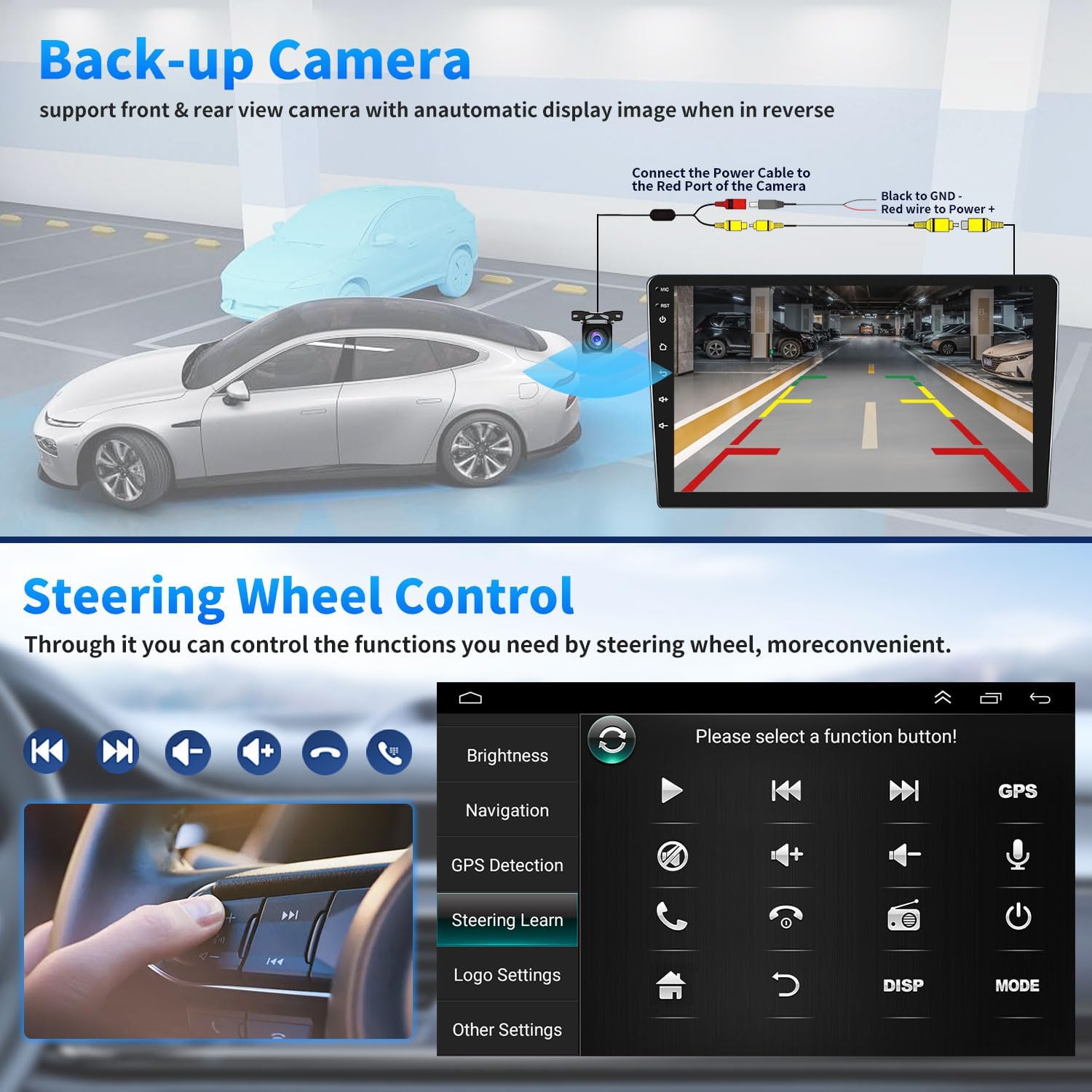
Figure 5.8: Backup camera display with parking assistance.

Whakaahua 5.9: Whakamuri View Camera, Steering Wheel Control, and Split Screen features.
5.7 Mana Wira urungi (SWC)
If properly wired during installation, you can control various functions of the car stereo using your vehicle's original steering wheel buttons.
- Mahi Ako: Access the "Steering Learn" menu in the unit's settings to program your steering wheel buttons. Follow the on-screen instructions to assign functions like volume up/down, track skip, mode change, and call answer/end.
Figure 5.10: Steering Wheel Control learning interface.
5.8 Mahi Wehewehe Mata
Mā te āhuatanga wehewehe mata ka taea e koe te whakahaere i ngā taupānga e rua i runga i te mata i te wā kotahi.
- Te Whakahohe i te Mata Wehewehe: While an app is open, long-press the recent apps button or drag an app to one side of the screen (depending on the Android version) to activate split-screen mode.
- Whakamahinga: Mo te example, you can have navigation running on one side and music playback on the other.
Figure 5.11: Split-screen mode displaying two applications simultaneously.
5.9 HD IPS Touchscreen
The unit features an HD IPS touchscreen for clear visuals and responsive interaction.
- Āhuatanga: Anti-glare, scratch-resistant, and full touch capabilities.

Figure 5.12: HD IPS Touchscreen features.
6. Tiaki
- Te horoi i te Mata: Whakamahia he kakahu ngohengohe, kore-miro hei muru mārire i te mata pa. Kaua e whakamahi i ngā kaihoroi whakakoi, i ngā whakarewa rānei.
- Whakahōu Pūmanawa: Periodically check for system software updates via Wi-Fi to ensure optimal performance and access to new features.
- Aukati i nga Tikanga Tino: Protect the unit from extreme heat, cold, and direct prolonged sunlight.
7. Te Raru
| Raruraru | Take pea | Rongoā |
|---|---|---|
| Karekau te waeine i te hiko. | Incorrect power wiring; Blown fuse; Loose connection. | Check power cable connections. Verify vehicle fuse. Ensure battery is connected. |
| Karekau he tangi. | He iti rawa te rōrahi; Whakahohe wahangu; Kei te hē te waea waea. | Whakanuia te oro. Tirohia mēnā kei te whakahohehia te whakangā. Manatokohia ngā hononga waea kaikorero. |
| GPS signal weak or unavailable. | Kāore te pūihi GPS i tāuta tika, i āraia rānei. | Me whakarite kia mau te pūihi GPS ki tētahi wāhi mārama, kāore he arai. |
| Nga take hononga Nihokikorangi. | Phone not in pairing mode; Incorrect pairing code; Interference. | Ensure phone's Bluetooth is on and discoverable. Re-pair the device. Move away from other wireless devices. |
| Kāore te kāmera tārua e whakaatu ana. | Camera power or video cable disconnected; Reverse trigger wire not connected. | Check camera power and video connections. Ensure reverse trigger wire is correctly connected to the vehicle's reverse light circuit. |
| Kāore e mahi ana ngā Mana o te Wira Uru. | SWC wires incorrectly connected; SWC learning not performed. | Verify SWC wiring. Perform the "Steering Learn" procedure in the settings. |
8. Whakatakotoranga
| Āhuahira | Taipitopito |
|---|---|
| Tauira Hototahi | Chevrolet Colorado 2004-2012 |
| Pūnaha Mahi | Android 13 |
| Rahi Whakaatu | 7 Inihi |
| Momo Whakaatu | HD IPS Touchscreen (Anti-glare, Scratch Resistant) |
| Te Rokiroki Mahara | 32 GB (roto) |
| Hangarau Hononga | Nihokikorangi, USB, Wi-Fi |
| Nga waahanga motuhake | Wireless Carplay, Wired Android Auto, Mirror Link, GPS Navigation, FM/RDS Radio, EQ, Backup Camera Support, Steering Wheel Control |
| Taumaha Tūemi | 3.52 pauna |
| Ahu mōkihi | 8.66 x 5.51 x 5.51 inihi |
9. Pūtāhui me te Tautoko
For warranty information and technical support, please refer to the contact details provided with your purchase or visit the official Aublinto website. Protection plans are available for purchase separately to extend coverage beyond the standard warranty period.
- Mahere Tiaki Tau 2: Kei te waatea mo te $15.99
- Mahere Tiaki Tau 3: Kei te waatea mo te $21.99
- Tiaki Whakaoti: Monthly plan available for $16.99/month, covering eligible past and future purchases.
These protection plans are offered by third-party providers and are separate from any manufacturer's warranty.


