1. Hua Neke Atuview
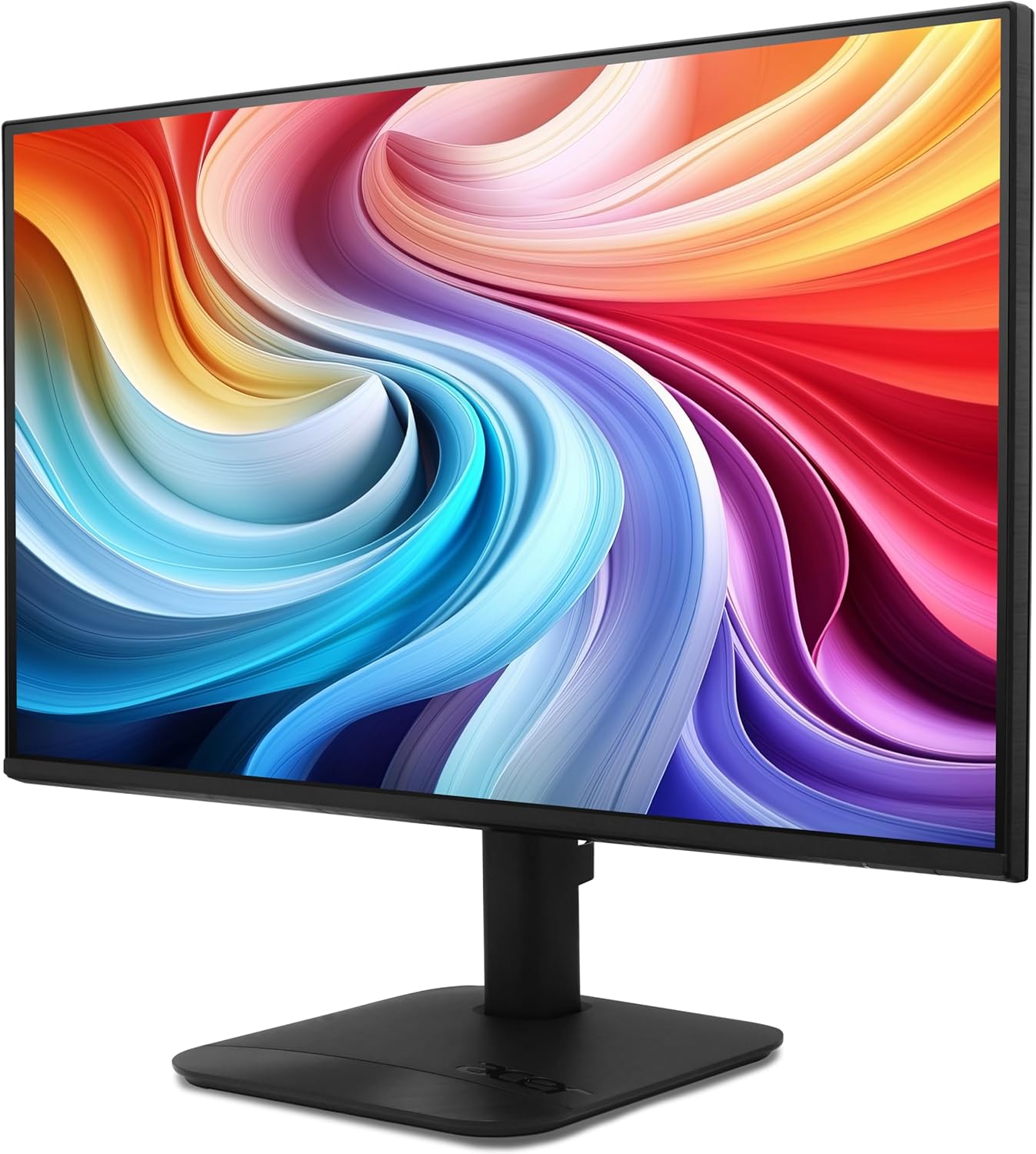
The Acer KB272 P6bi is a 27-inch IPS Full HD (1920 x 1080) monitor designed for both gaming and office use. It features a Zero-Frame design, AMD FreeSync Technology, up to a 144Hz refresh rate, and a 1ms Visual Response Boost (VRB) for smooth visuals. The IPS panel ensures accurate colors and wide viewnga koki.

Whakaahua 1: Mua view of the Acer KB272 P6bi monitor.
Āhuatanga matua:
- Vibrant Full HD Display: Experience crisp, true-to-life colors with 1920x1080 resolution and a 16:9 aspect ratio.
- Hangarau AMD FreeSync: Eliminates screen tearing and stuttering by synchronizing the monitor's refresh rate with your graphics card's frame rate.
- Wā Whakahoki Tere: A fast 1ms (VRB) response time ensures smooth rendering of fast-moving action without smearing or ghosting.
- Rere Tāmata Nui: Up to 144Hz refresh rate provides ultra-smooth 2D motion scenes.
- Hoahoa ZeroFrame: A near bezel-less design maximizes screen real estate and allows for seamless multi-monitor setups.
- Hangarau IPS: Delivers accurate colors and consistent image quality across wide viewing angles of up to 178 degrees.
2. He aha kei roto i te Pouaka
Manatokohia kei te noho nga waahanga katoa i mua i te haere ki te tatūnga.
- Acer KB272 P6bi Monitor Display
- Tu Aroturuki (Turanga me te kaki)
- Waea hiko
- Tauera HDMI
3. Tohutohu Tatūnga
3.1 Te Huinga i te Turanga Aroturuki
- Tuhia kia anga whakararo te kaitutei ki runga i te mata ngawari, ma kia kore e pakaru.
- Attach the stand neck to the back of the monitor until it clicks into place or is secured with screws (refer to the quick start guide for specific model details).
- Whakauruhia te turanga tu ki te kaki tu, kia mau tonu.
Whakaahua 2: Whakamuri view o te kaupane me te waahi taapiri tu.
3.2 Te hono i te Aroturuki
- Connect one end of the provided HDMI cable to the HDMI port on your computer or graphics card.
- Connect the other end of the HDMI cable to the HDMI port on the Acer KB272 P6bi monitor. Alternatively, use a VGA cable if your system requires it.
- Honoa te taura hiko ki te urunga hiko o te kaupane, katahi ka ki te putanga hiko.
- Pēhia te pātene hiko i runga i te aroturuki hei whakakā.

Figure 3: Monitor connectivity ports (HDMI and VGA).
4. Whakahaere i te Aroturuki
4.1 Hiko / Whakaweto
Press the power button, typically located on the back or bottom right of the monitor, to turn the display on or off.
4.2 Tahua Whakaatu Ma-Mata (OSD).
The monitor features a joystick-style button, often integrated with the power button, for navigating the OSD menu. Press the button once to bring up the options, then tilt it in one of four directions to select and adjust settings such as brightness, contrast, color temperature, and input source.
4.3 Te Whakatikatika i nga Tautuhinga Whakaatu
- Tirohanga/Prata: Whakarerekētia ēnei tautuhinga kia rite ki tō viewte taiao me ngā manakohanga.
- Tautuhinga Tae: Modify color temperature or select preset modes for optimal visual experience.
- Pūtake Tāuru: Manually select between HDMI and VGA inputs if auto-detection does not work.
- Rere tāmata: Ensure your computer's display settings are configured to utilize the monitor's maximum refresh rate (up to 144Hz) for the smoothest experience.
- AMD FreeSync: Enable FreeSync in both the monitor's OSD menu and your graphics card's control panel for tear-free gaming.

Figure 4: Visual representation of AMD FreeSync technology.
5. Tiaki
5.1 Te horoi i te Aroturuki
- Whakawetohia te kaitirotiro i nga wa katoa ka wetekina te taura hiko i mua i te horoi.
- Kia ngawari te whakamahi i te kakahu ngohengohe, karekau he ngongo dampkua whakakikoruatia ki te wai, ki te kai horoi mata ngawari ranei.
- Murua ata te mata. A ape i te pehanga nui.
- Kaua e whakamahia te waipiro, ngā kaihoroi kei roto he haukini, ngā mea whakakoi rānei, nā te mea ka kino pea te mata o te mata.
5.2 Tiakitanga Whanui
- A ape i te whakatakoto i nga mea taumaha ki runga i te kaupane, i ona taura ranei.
- Puritia te kaitirotiro mai i te ra tika, nga puna wera, me te makuku nui.
- Me whakarite kia pai te hau huri noa i te kaitirotiro kia kore ai e wera rawa.
6. Te Raru
6.1 Kaore he Whakaatu / Mata Pango
- Tirohia mēnā kei te kā te mata tirotiro, ā, kei te mura te rama tohu hiko.
- Ensure all video cables (HDMI/VGA) are securely connected to both the monitor and the computer.
- Manatokohia kua tīpakohia te pūtake tāuru tika i te tahua OSD o te mata.
- Whakamātauria te mata tirotiro ki tētahi atu rorohiko, ki tētahi atu taura ataata rānei mēnā ka taea.
6.2 Image Flickering or Distortion
- Tirohia te taura ataata mo te kino, mo nga hononga wetewete ranei.
- Adjust the refresh rate in your computer's display settings to match the monitor's capabilities.
- Disable AMD FreeSync in the OSD menu and graphics card settings to see if it resolves the issue.
- Me mohio kei te hou tonu o taraiwa kaari whakairoiro.
6.3 Colors Appear Incorrect
- Tautuhi anō i ngā tautuhinga tae o te mata ki ngā tautuhinga wheketere mā te tahua OSD.
- Adjust the color temperature or individual RGB values in the OSD menu.
- Calibrate your display using your operating system's color calibration tools.
7. Whakatakotoranga
Detailed technical specifications for the Acer KB272 P6bi monitor:
| Āhuahira | Whakatakotoranga |
|---|---|
| Rahi Mata | 27 Inihi |
| Momo Paewhiri | IPS |
| Whakatau | 1920 x 1080 (Katoa HD) |
| Aspect Ratio | 16:9 |
| Rere tāmata | Tae atu ki te 144Hz |
| Wā Whakautu | 1ms (VRB) |
| Hangarau Tukutahi Urutau | AMD FreeSync |
| Hononga | Atanga, VGA |
| Viewing Koki | 178° (H/V) |
| Tae | Pango |
| Taumaha Tūemi | 8.38 pauna |
| Hunga Hua | 8.26 x 27.36 x 18.29 inihi |
8. Pūtāhui me te Tautoko
Mō ngā mōhiohio pūtāhui me te tautoko hangarau, tirohia ngā tuhinga kei roto i tō hua, tirohia rānei te tautoko Acer mana. webpae. Puritia to rihiti hoko mo nga kereme whakamana.


