1. Kupu Whakataki
This manual provides essential information for setting up, operating, maintaining, and troubleshooting your Google Pixel 10 Pro XL smartphone. Please read this guide thoroughly to ensure optimal performance and longevity of your device.
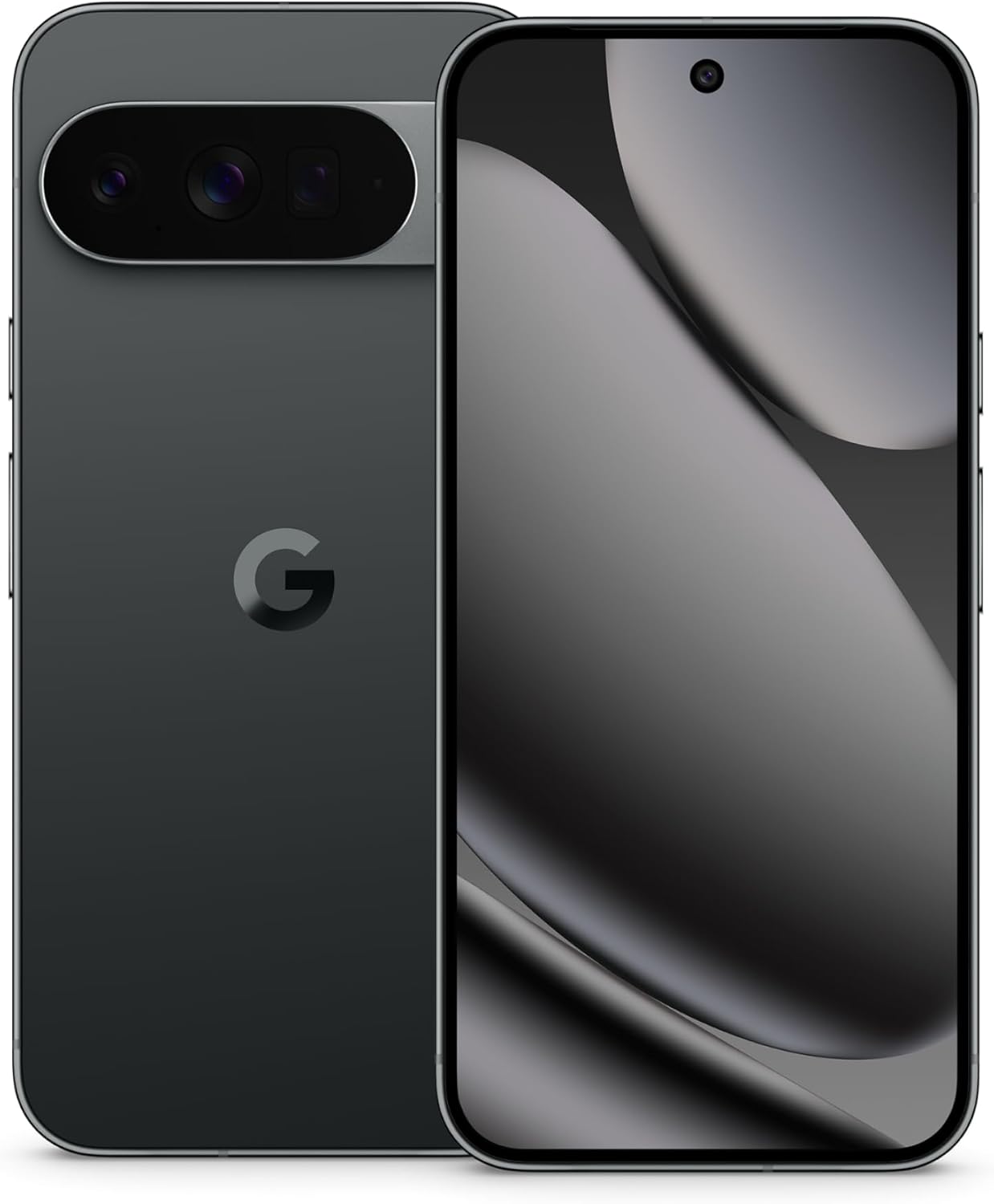
Image: The Google Pixel 10 Pro XL in Obsidian, showcasintōna hoahoa huatau me te pae kāmera.
2. Tatūnga
2.1. He aha kei roto i te Pouaka
Upon opening your Google Pixel 10 Pro XL package, you should find the following items:
- Google Pixel 10 Pro XL Cell Phone
- USB Taura-C taura
Please note that other accessories, such as a power adapter or headphones, may be sold separately.
2.2. Te Wetewete me te Tirotiro Tuatahi
Carefully remove the phone and accessories from the packaging. Inspect the device for any visible damage before proceeding with setup.
Video: An unboxing demonstration of the Google Pixel 10 Pro XL. This video illustrates the packaging contents and the initial appearance of the device.
2.3. Te Whakakaha me te Tatūnga Tuatahi
- Press and hold the Power button (located on the right side of the device) until the Google logo appears.
- Whaia nga tohu i runga mata ki te kowhiri i to reo, hono atu ki te whatunga Wi-Fi, ka whakaae ki nga tikanga me nga tikanga.
- Sign in with your Google Account or create a new one. This is essential for accessing Google services and the Play Store.
- Transfer data from your old device (optional). The setup wizard will guide you through options like Quick Switch Adapter or cloud backup.
2.4. SIM Card Activation (eSIM)
The Google Pixel 10 Pro XL supports eSIM technology, eliminating the need for a physical SIM card. During phone setup, you will be prompted to activate your eSIM. For more details, visit g.co/pixel/esim.
3. Whakahaere i to Pūrere
3.1. Whakaterenga Taketake
Your Pixel 10 Pro XL runs on Android 16, offering intuitive gesture navigation. Swipe up from the bottom to go home, swipe up and hold for recent apps, and swipe from the left or right edge to go back.
3.2. Pūnaha Kāmera
The device features a Triple Rear Camera System. Open the Camera app to access various modes, including Photo, Video, Portrait, and Night Sight.

Image: The Pixel 10 Pro XL's 100x Pro Res Zoom in action, capturing distant subjects with clarity.
Whakamahia te 100x Pro Res Zoom for detailed distant shots. The upgraded 50 MP camera also supports Super Steady Videos for stable cinematic footage.

Image: The Pixel 10 Pro XL's Super Steady Video feature, ensuring smooth recording even during dynamic scenes.
3.3. Gemini AI Kaiāwhina
Your Pixel 10 Pro XL integrates the Gemini AI Assistant. Access it by saying "Hey Google" or by swiping from a corner (configurable). Gemini can assist with tasks, answer questions, and provide real-time information.

Image: The Gemini Live feature on the Pixel 10 Pro XL, allowing users to share their camera view for real-time AI assistance.
3.4. Whakahaere Pūhiko
The device is equipped with a fast-charging battery designed to last 24+ haora on a single charge. To optimize battery life:
- Whakaritea te kanapa o te mata.
- Whakahohehia te aratau Tiaki Pūhiko ina hiahiatia.
- Katia nga taupānga kaore i whakamahia i te papamuri.
For faster charging, use a compatible USB Type-C fast charger (sold separately).
3.5. Whakaatu
Experience vibrant visuals on the 6.8" Super Actua Display. This display offers high brightness and clarity for various viewing tikanga.

Image: Details of the Pixel 10 Pro XL's Super Actua display and its robust build quality.
4. Tiaki
4.1. Te horoi i to Pūrere
To clean your Pixel 10 Pro XL:
- Whakamahia he kakahu ngohengohe, kore-puru.
- A ape i nga mea abrasive me nga matū kino.
- Mo nga kohukohu pakeke, paku dampen te kakahu ki te wai.
4.2. Software Updates (Pixel Drops)
Google regularly releases software updates, known as "Pixel Drops," to enhance features, improve performance, and provide security patches. Ensure your device is connected to Wi-Fi and has sufficient battery life before installing updates.

Image: The Pixel Drops program, illustrating how the phone receives ongoing software enhancements.
4.3. Tiaki Pūhiko
Hei whakaroa i te roa o to pākahiko:
- A ape i te wera nui.
- Do not consistently drain the battery to 0% or charge it to 100% if not necessary.
- Use certified charging accessories.
5. Te Raru
5.1. Nga take noa
- Kaore te taputapu e whakautu ana: Pēhia me te pupuri i te paatene Hiko mo te 30 hēkona kia kaha ki te whakaara ano.
- Raruraru hononga (Wi-Fi/Nihokikorangi): Try toggling Wi-Fi or Bluetooth off and on. If the issue persists, restart your device or reset network settings.
- Taupānga e takataka ana: Clear the cache and data for the problematic app in Settings > Apps. If it continues, uninstall and reinstall the app.
5.2. Tautuhi Tautuhi
A factory reset will erase all data from your phone and restore it to its original factory settings. This can resolve persistent software issues but should be used as a last resort. Pūrua ō raraunga i mua i te haere tonu.
- Haere ki Tautuhinga> Pūnaha> Tautuhi i nga whiringa.
- Tīpakohia "Muku raraunga katoa (tautuhi wheketere)".
- Whakapumautia to whakatau me te whakauru i to PIN / kupuhipa mena ka akiakihia.
6. Whakatakotoranga
The Google Pixel 10 Pro XL is engineered for advanced performance and user experience.

Image: An illustration of the Pixel 10 Pro XL's internal components, emphasizing its powerful processor and memory.
| Āhuahira | Taipitopito |
|---|---|
| Ingoa Tauira | Pixel 10 Pro XL |
| Pūnaha Mahi | Android 16 |
| Tukatuka | Google Tensor (3.78 GHz CPU Speed) |
| RAM | 16 GB |
| Rokiroki Roto | 256 GB (Maximum 256 GB Flash Memory Supported) |
| Rahi Whakaatu | 6.8 Inihi Whakaaturanga Super Actua |
| Whakaatu Whakatau | 3292 x 3292 |
| Pūhiko Raukaha | 5200 mAh (Battery Power Rating: 5200) |
| Hononga | Bluetooth, NFC, Wi-Fi, USB Type-C |
| Ahinga (Hua) | 6.4 x 3 x 0.3 inihi |
| Taumaha Tūemi | 12.3 hekere (0.35 Kirokaramu) |
| Tae | Obsidian |
| Kawe Ahokore | Kua Wewete mo nga Kaihoko Katoa |
7. Pūtāhui me te Tautoko
7.1. Rarangi Whakaiti
Your Google Pixel 10 Pro XL is covered by a limited warranty from Google. This warranty typically covers defects in materials and workmanship under normal use. For specific terms and conditions, including duration and coverage details, please refer to the warranty information provided with your purchase or visit the official Google support webpae.
7.2. Tautoko Kiritaki
For further assistance, technical support, or warranty claims, please contact Google Support:
- Tautoko Aipurangi: Visit the official Google Pixel Help Center (support.google.com/pixelphone).
- Huihuinga Hapori: Engage with other Pixel users and experts for solutions.
When contacting support, have your device's serial number and proof of purchase ready.


