Kupu Whakataki
Welcome to the user manual for your Rapoo EV310M Wireless Vertical Mouse. This ergonomic mouse is designed for comfort and efficiency, featuring multi-mode wireless connectivity and adjustable DPI settings. Please read this manual carefully to ensure proper setup and optimal performance.
Ihirangi mokete
- Rapoo EV310M Wireless Vertical Mouse
- Kaiwhiwhi USB (kei roto i te kiore)
- Pūhiko AA (kua whakauruhia, kua whakauruhia ranei)
- Aratohu Timata Tere (tenei tuhinga)
Ka mutu te huaview
Familiarize yourself with the components of your Rapoo EV310M mouse.
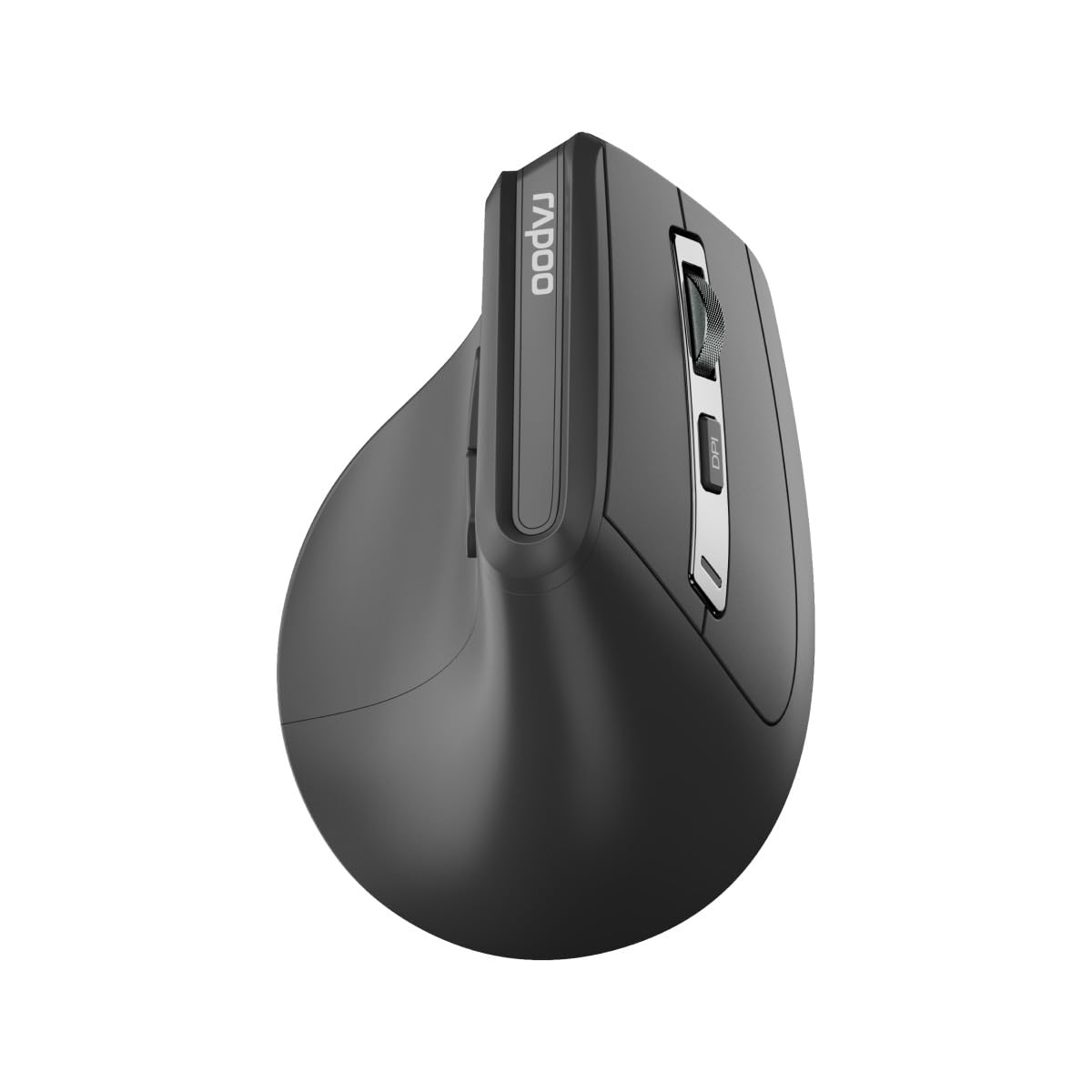
Whakaahua: Runga view of the Rapoo EV310M Wireless Vertical Mouse, highlighting the scroll wheel and DPI button.
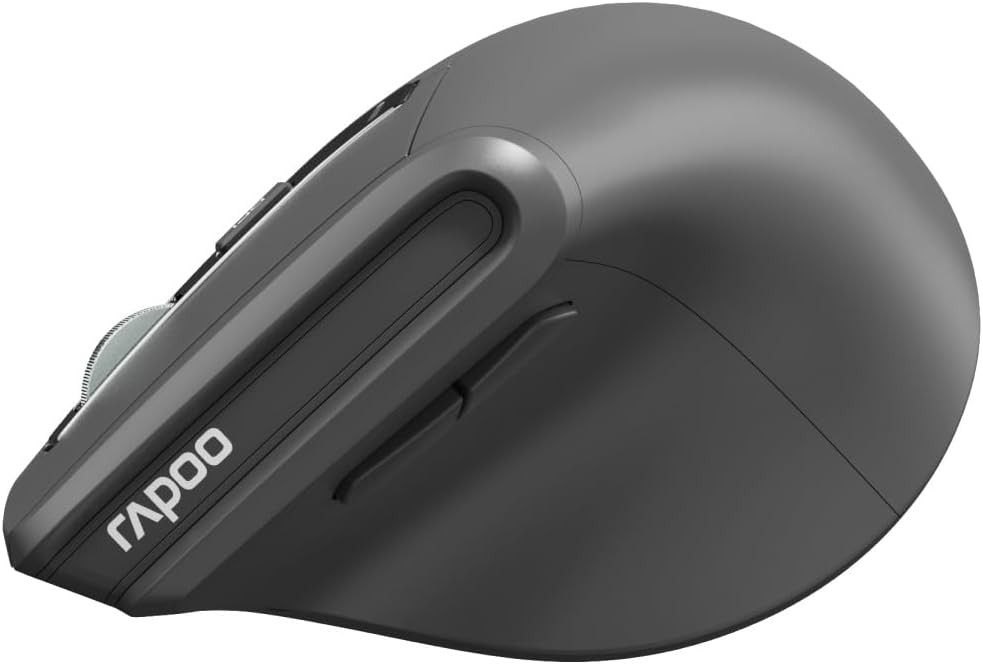
Whakaahua: Taha view of the Rapoo EV310M Wireless Vertical Mouse, showing the forward and backward navigation buttons.
Nga Mahi Patene
- Pātene Pātene Mauī: Mahi pāwhiri-maui paerewa.
- Pātene Pāwhiri Matau: Mahi pāwhiri-matau paerewa.
- Panuku Wira: Scroll up/down, middle-click.
- Patene DPI: Ka whakarerekē i te aro o te kiore (DPI).
- Pātene Whakamua: Ka whakatere whakamua ki roto web kaitirotiro ranei file kaihōpara.
- Pātene Whakamuri: Ka whakatere whakamuri ki roto web kaitirotiro ranei file kaihōpara.
- Mode Switch Button/Indicator: Switches between 2.4GHz and Bluetooth modes.
Tatūnga
1. Tāuta Pūhiko
- Rapua te wahanga pākahiko kei raro o te kiore.
- Whakatuwheratia te uhi o te wahanga pākahiko.
- Whakauruhia tetahi pākahiko AA, kia tika te polarity (+/-).
- Katia te uhi o te wahanga pākahiko.
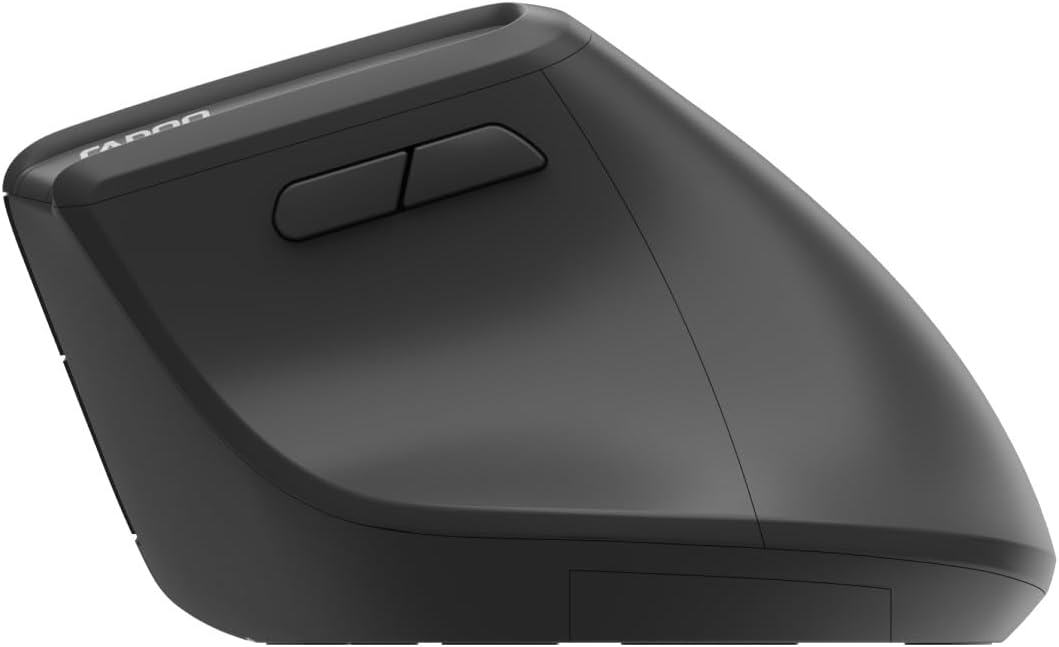
Image: Underside of the mouse, illustrating the battery compartment and the storage slot for the USB receiver.
2. Te hono i to Kiore
The Rapoo EV310M supports multi-mode wireless connection: 2.4 GHz via USB receiver and Bluetooth 3.0/5.0.
2.1. Hononga Ahokore 2.4 GHz
- Tangohia te kaiwhiwhi USB i tōna mokowā rokiroki kei raro i te kiore.
- Monohia te kaiwhiwhi USB ki tetahi tauranga USB e waatea ana ki to rorohiko.
- Turn on the mouse using the power switch (usually on the bottom).
- The mouse should connect automatically. If not, press the mode switch button until the 2.4GHz indicator lights up.
2.2. Hononga Nihokikorangi
- Whakakāhia te kiore.
- Press the mode switch button to select a Bluetooth channel (e.g., Bluetooth 1 or Bluetooth 2). The indicator light for the selected Bluetooth channel will start blinking slowly.
- Press and hold the mode switch button for 3 seconds until the indicator light blinks rapidly. This indicates the mouse is in pairing mode.
- I runga i to rorohiko, i to taputapu ranei, whakatuwhera i nga tautuhinga Nihokikorangi ka rapu mo nga taputapu hou.
- Select "RAPOO EV310M" from the list of available devices to pair.
- Kia honoa, ka mutu te kemo o te rama tohu, ka noho pūmau mō ētahi hēkona i mua i te whakaweto.
Nga Tohutohu Whakahaere
1. Whakatikatika DPI
The DPI (Dots Per Inch) button allows you to adjust the cursor speed and sensitivity.
- Pehia te Pātene DPI located on the top of the mouse to cycle through available DPI settings (e.g., 800, 1200, 1600, 2400 DPI).
- Each press will change the sensitivity, allowing you to find your preferred cursor speed.
2. Te Whakawhiti i waenga i ngā Pūrere Honohono
The EV310M mouse can be paired with up to three devices (one 2.4GHz and two Bluetooth devices).
- Hei huri i waenga i nga taputapu hono, pehia noa te pātene whakakā aratau i runga i te kiore.
- The indicator light will briefly show which channel (2.4G, BT1, BT2) is active.
Te tiaki
Te horoi
Hei horoi i tō kiore, whakamahia he kakahu ngohengohe, maroke. Mō te paru uaua, whakamahia he kakahu pakupaku.ampen te kakahu ki te wai, ki te otinga horoi ngawari ranei. A ape i te whakamahi i nga matū kino, i nga taonga abrasive ranei.
Whakakapinga Pūhiko
When the mouse performance degrades or the indicator light signals low battery, replace the AA battery following the installation steps in the Setup section.
Raparongoā
Kaore Te Kiore e Whakautu
- Takina Pūhiko: Me whakarite kia tika te whakaurunga o te pākahiko me te nui o te utu. Whakakapihia mehemea e tika ana.
- Whakawhiti Kaha: Manatoko kua ka te kiore.
- Kaiwhiwhi USB: For 2.4GHz mode, ensure the USB receiver is securely plugged into a working USB port. Try a different port.
- Hononga Nihokikorangi: For Bluetooth mode, ensure Bluetooth is enabled on your device and the mouse is correctly paired. Re-pair if needed.
- Tawhiti: Ensure the mouse is within the effective operating range of your computer (typically 10 meters).
He Pohehe te Nekehanga Pehu
- Mata: Whakamahia te kiore ki runga i te mata ma, kaore e whakaata. Ka tūtohuhia he papa kiore.
- Tautuhi DPI: Adjust the DPI setting to a lower value if the cursor is too fast or jumpy.
- Pūoko Ma: Check the optical sensor on the bottom of the mouse for any obstructions or dirt. Clean gently with a soft cloth.
Whakatakotoranga
| Āhuahira | Taipitopito |
|---|---|
| Waitohu | RAPOO |
| Tau tauira | EV310M |
| Hangarau Hononga | Bluetooth (3.0, 5.0), 2.4 GHz Wireless |
| DPI Tairongo | Adjustable 800-2400 DPI |
| Te maha o nga Patene | 6 |
| Takotoranga-ringa | ringa-matau |
| Puna Mana | Pūhiko (1x AA) |
| Ora Pūhiko | Tae atu ki te 9 marama |
| Hototahitanga Pūnaha Whakahaere | PC, Linux, Mac |
| Taumaha Tūemi | 100 karamu |
| Tae | Pango |
Pūtāhui me te Tautoko
For warranty information or technical support, please refer to the official RAPOO webpaetukutuku, whakapā atu rānei ki tō kaihokohoko o te rohe. Puritia tō rīhiti hoko mō ngā kereme pūtāhui.


